Entra Tenant Governance: Part 1: Configuration Management

Since the Entra Tenant Governance solution became generally available on August 10, 2026, I thought it was the perfect time to take a closer look at what it has to offer and share my findings in this blog.
To give this solution the attention it deserves, I’m going to split this blog post into (at least) two parts.
- Part 1 is about the Configuration Management features.
- Part 2 going to be about the Multi-Tenant Governance features.
So, what is Entra Tenant Governance? Microsoft tells us that it allows us to centrally govern and secure multi-tenant environments at scale. Up until now, we as Microsoft Partners already had GDAP to centrally manage multiple customers' environments, and for organizations with multiple tenants, MTO was already available. So, at first glance, Entra Tenant Governance might seem like just another addition to an already existing set of capabilities.
One of the challenges has been having a way to centrally manage configurations and baselines across multiple tenants and customers, and knowing when they drift out of compliance with those baselines. For the longest time, this was addressed by different third-party solutions. Entra Tenant Governance is hopefully Microsoft's answer.
This blog will include the following chapters:
- Licensing requirements
- Configuration management permissions
- Configuration snapshot
- Configuration monitor
- Monitor configuration drift
- Takeaways
Licensing requirements
Before we dive into the solution, let's quickly look at the licensing requirements for the configuration management part of this solution.
You need one of the following licenses:
- Microsoft Entra ID P1 or P2
- Up to 30 monitors and 800 configuration resources per tenant per day
- Up to 20,000 resources per tenant per month and 12 active snapshot jobs
- Microsoft Entra ID Governance (included in the Entra Suite)
- Base capacity plus 10 additional configuration resources per day for each license
- Base capacity plus 35 additional configuration resources per month for each license
Configuration management permissions
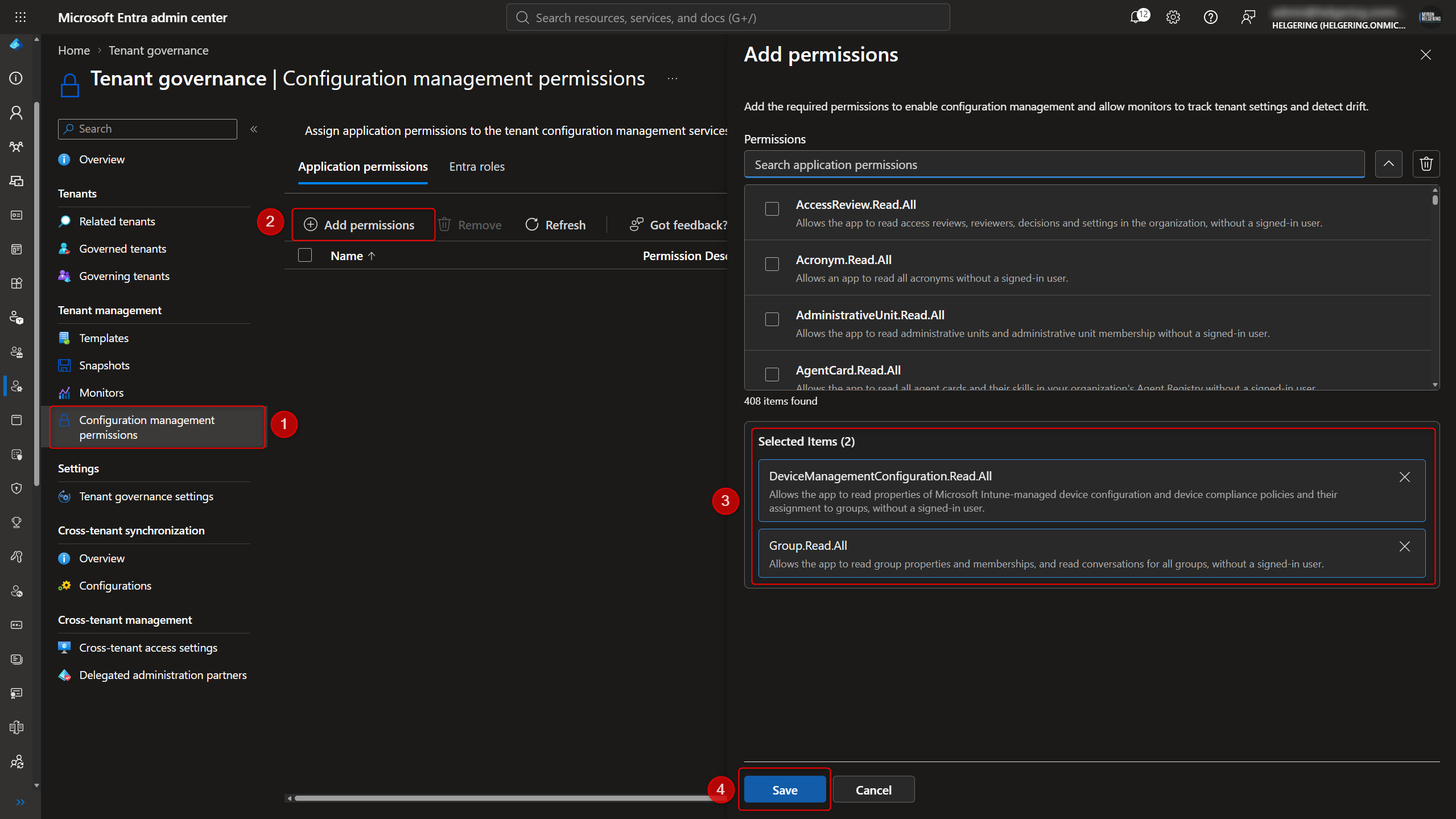
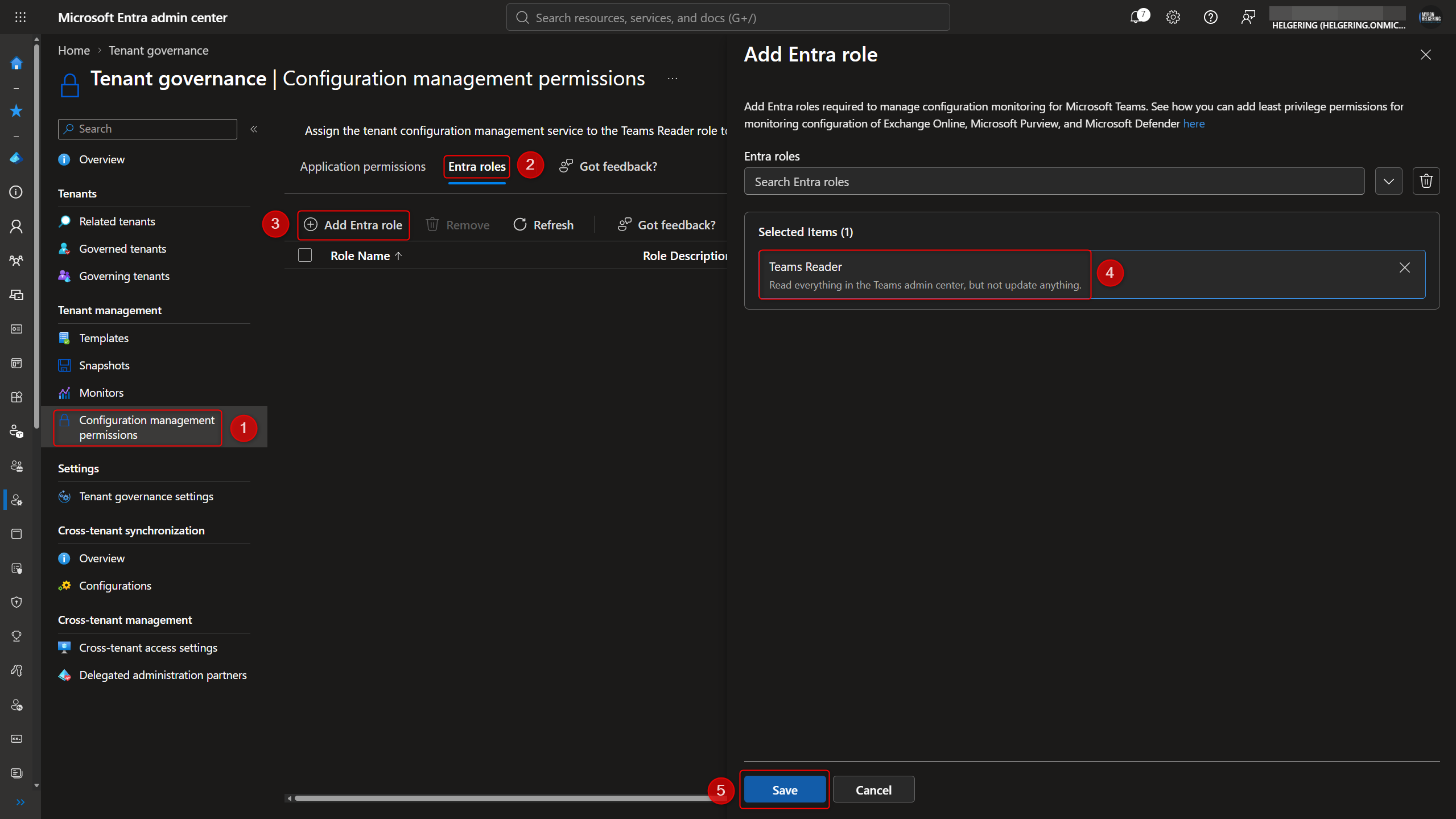
Configuration management permissions are used by the Tenant Configuration Management service to create snapshots and monitor configuration policies and settings. Therefore, the first step in configuring the solution is setting up these permissions.
- From the Entra Tenant Governance solution overview page, navigate to the “Configuration Management Permissions” page.
- Under the application permissions, select “Add permissions”.
- Select the (least-privilege) permissions the Tenant Configuration Management service is going to need to create snapshots and monitor your policies and settings.
- Click "Save".
If you’re not sure yet which permissions you’re going to need, you’ll get a clear overview later when creating your snapshot or monitor.
Optionally, you can also select specific Entra roles to assign, but at the moment only the “Teams Reader” role is available to access the Microsoft Teams admin center and its policy configuration.
Configuration snapshot
A configuration snapshot captures the current state of the policy settings that are active within our Microsoft 365 environment. The next step is to create one.
- Navigate to the “Snapshots” page.
- Click “New snapshot”.
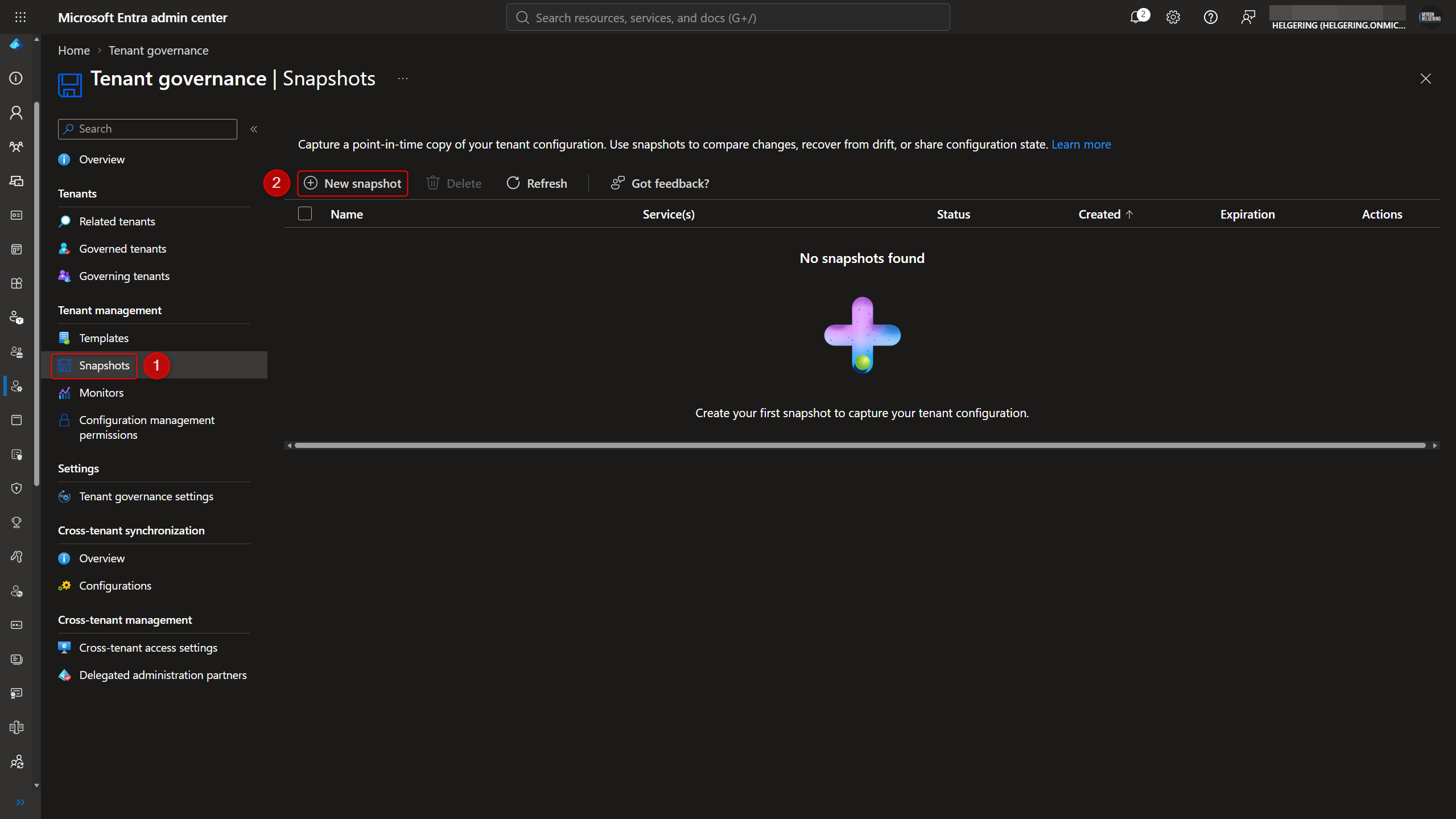
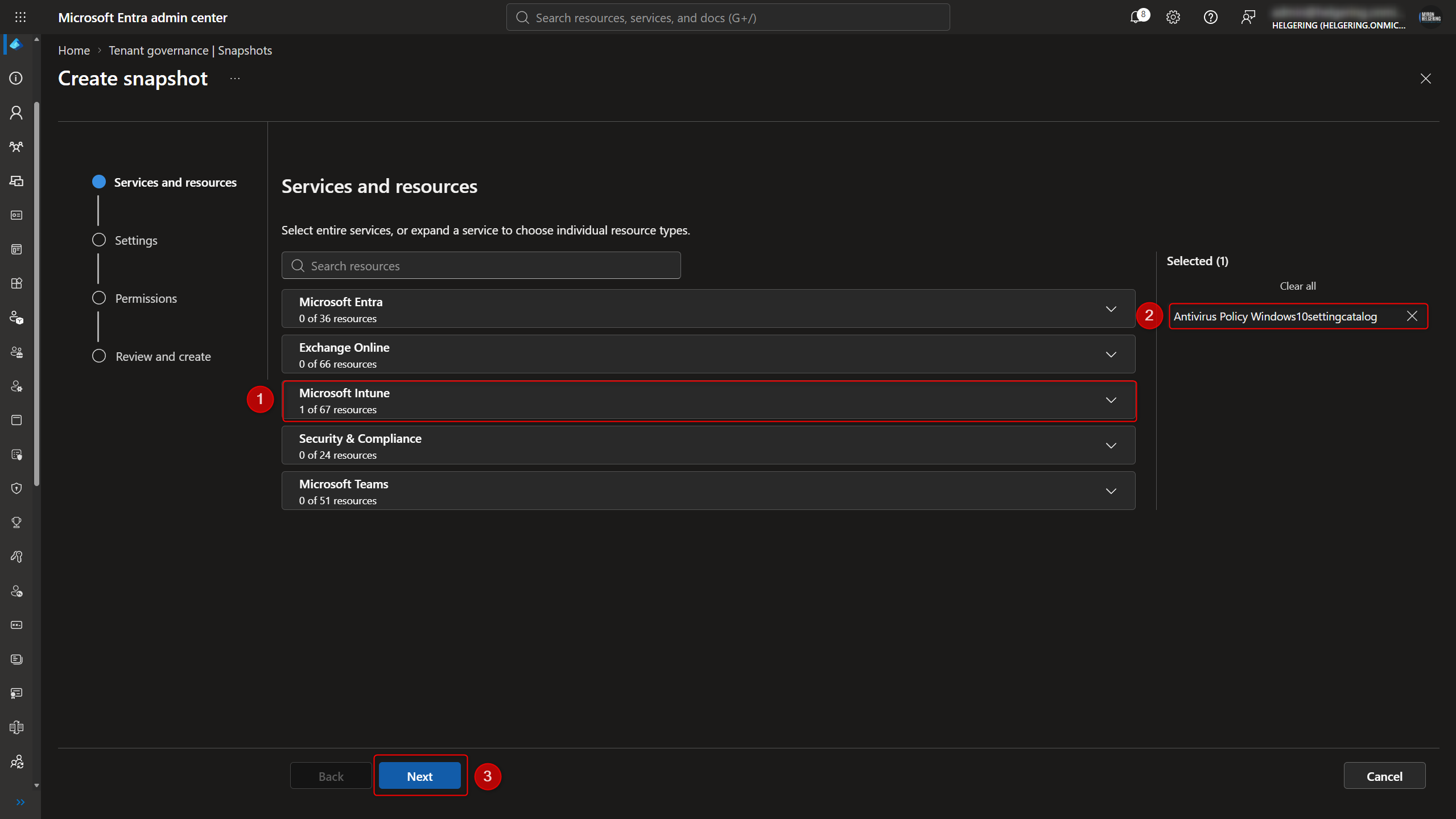
At the time of writing this blog (October 2026), the solution supports 244 different resource types, such as policies, settings, configurations, and rules. These cover Microsoft Entra, Exchange Online (including Defender for Office 365), Microsoft Intune, Security & Compliance (Microsoft Purview), and Microsoft Teams.
- Select a service, for example Microsoft Intune.
- Select the specific resource types you want to capture.
- Click "Next" (and "Next" again after giving your snapshot a name).
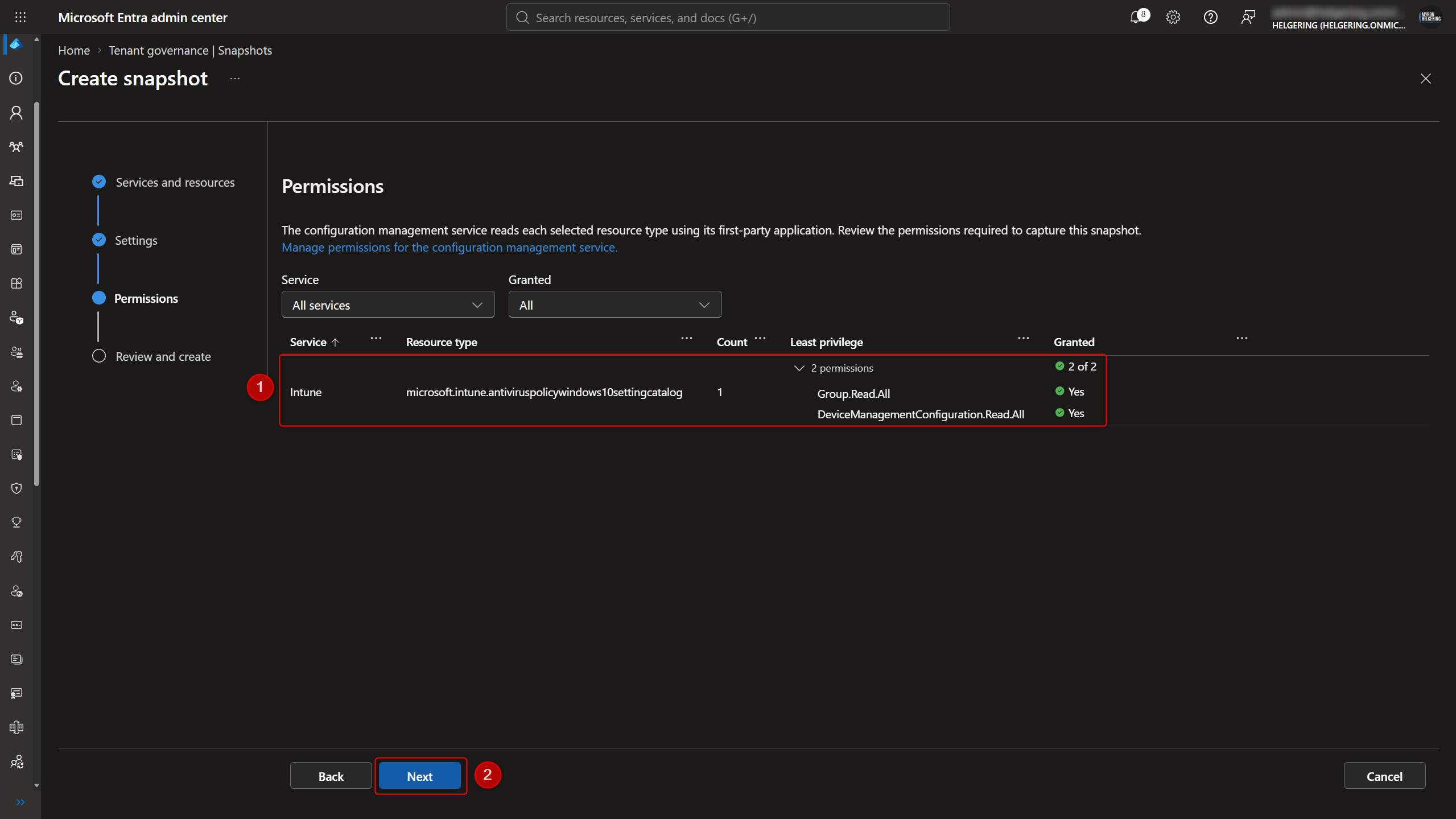
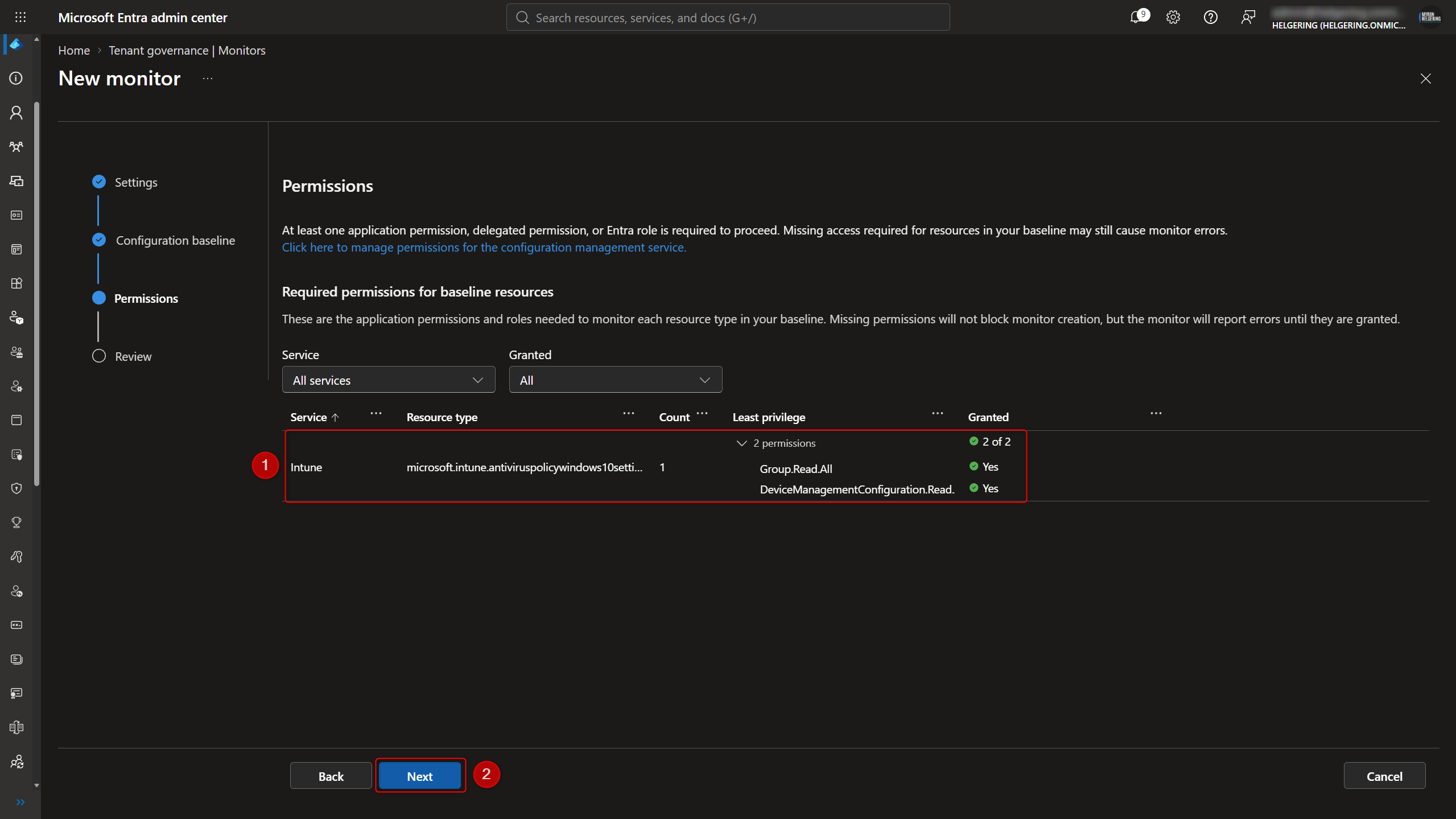
In the permissions section, you’ll be provided with a full overview of all the resource types you selected and the permissions required to create the snapshot.
- Make sure all permissions have been granted. If not, expand any resource types that have missing permissions and add them to your Configuration Management Permissions (see previous chapter).
- Click "Next", and create your snapshot.
Configuration monitor
A configuration monitor allows us to detect any drift in configuration compared to our baseline. Now that we have our configuration baseline, we can create the monitor.
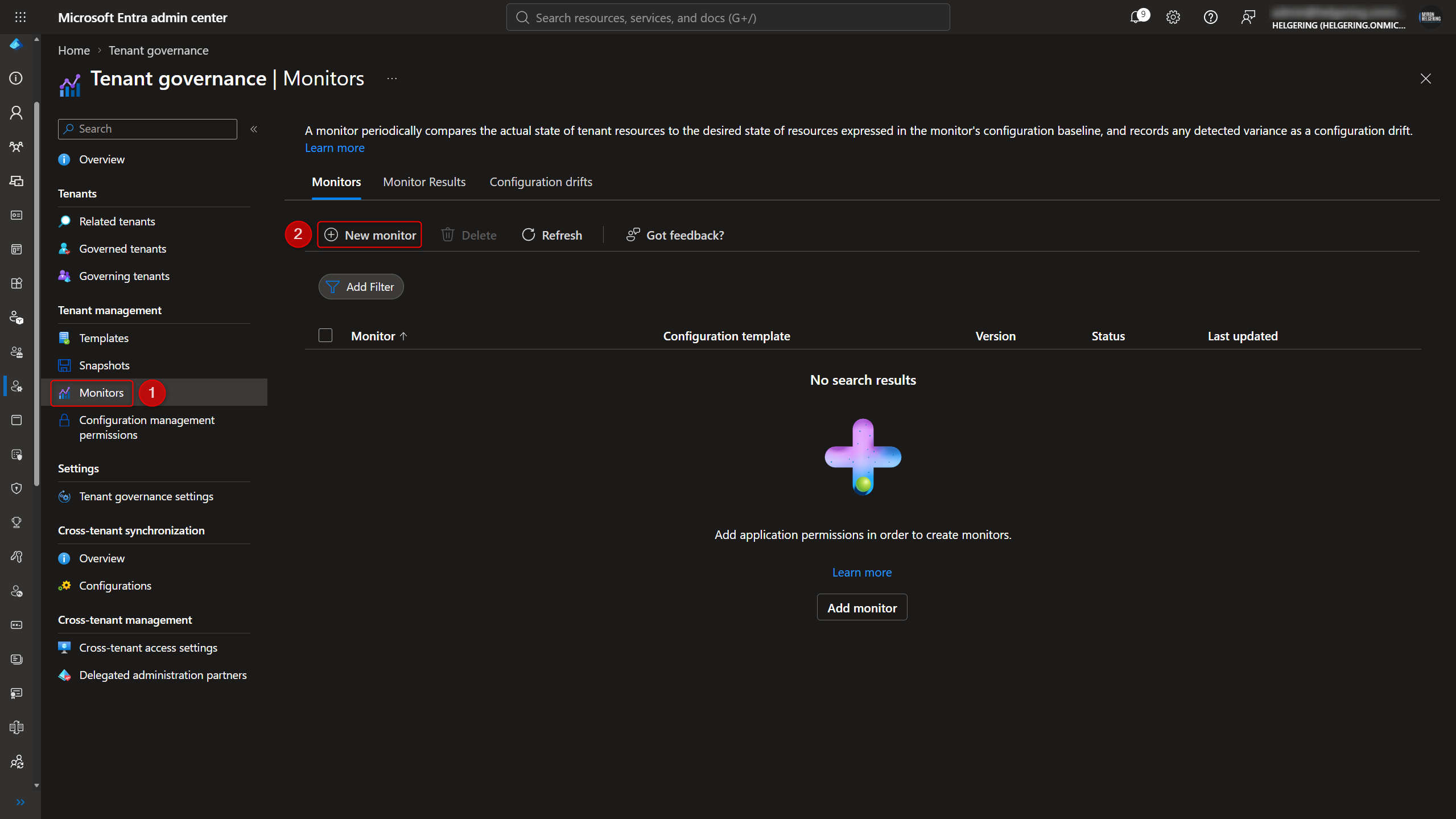
- Navigate to the “Monitors” page.
- Click “New monitor”.
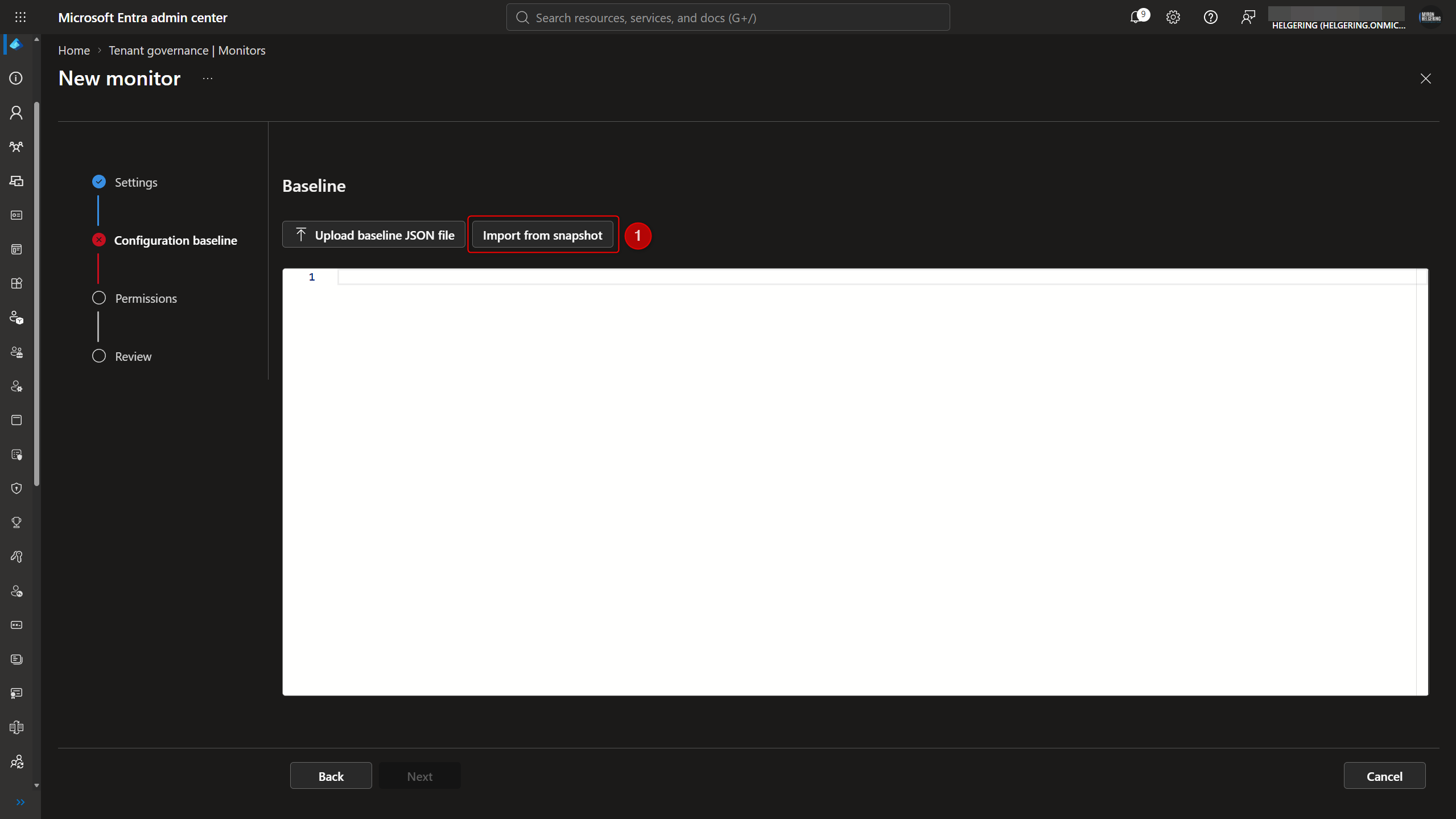
- For the baseline, you have two options: upload your own JSON file or import it from the snapshot we just created. We’ll use the snapshot.
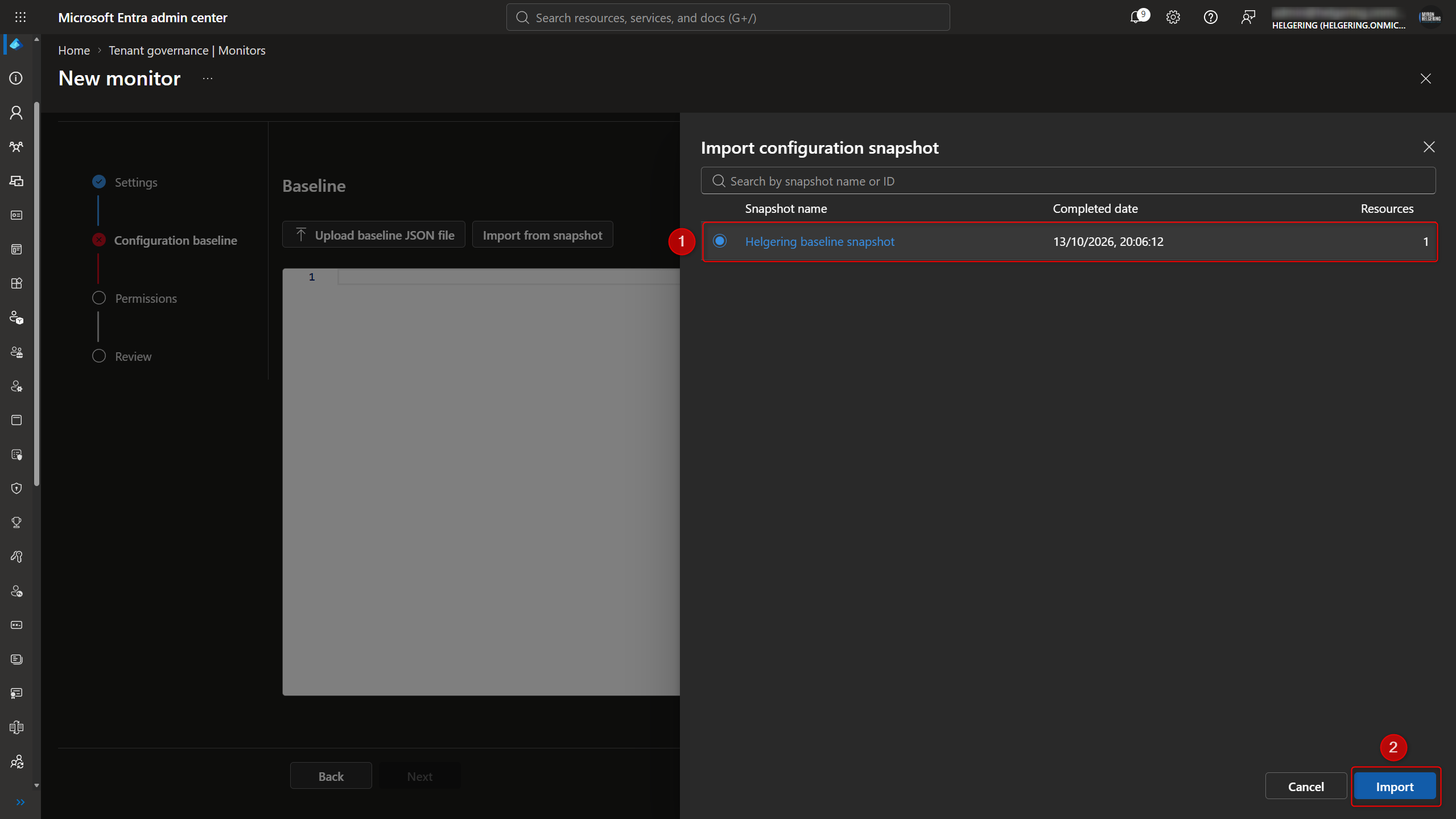
- From here, select your configuration snapshot.
- Click “Import”.
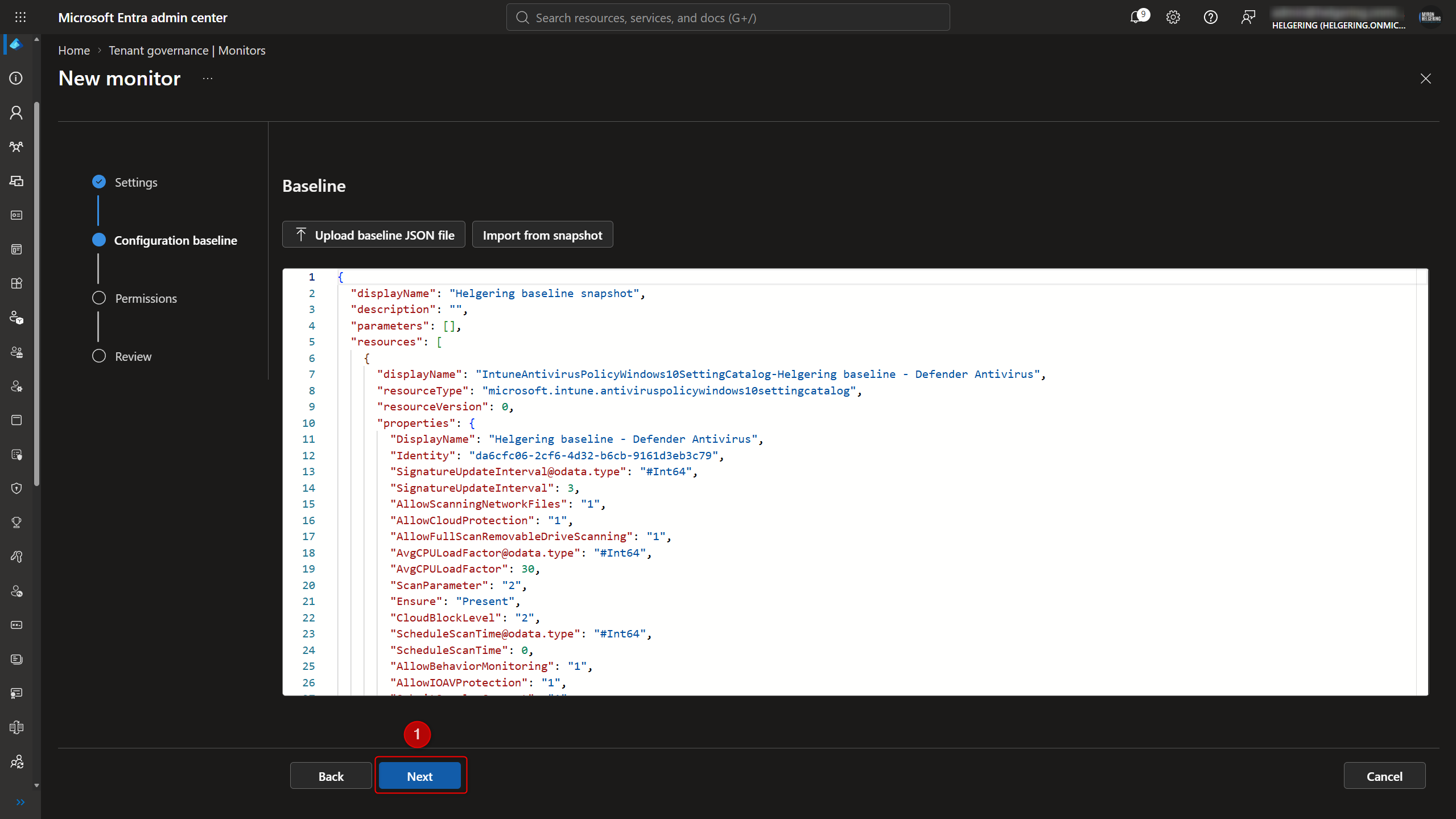
- Next, you’ll be able to see the JSON file and validate it before clicking “Next”.
- Make sure all permissions have been granted. If not, expand any resource types that have missing permissions and add them to your Configuration Management Permissions (see previous chapter).
- Click "Next", and create your monitor.
Monitor configuration drift
Now that we've set up the service permissions, captured our configuration baseline, and configured a monitor to detect drift, it's time to see how it works in practice.
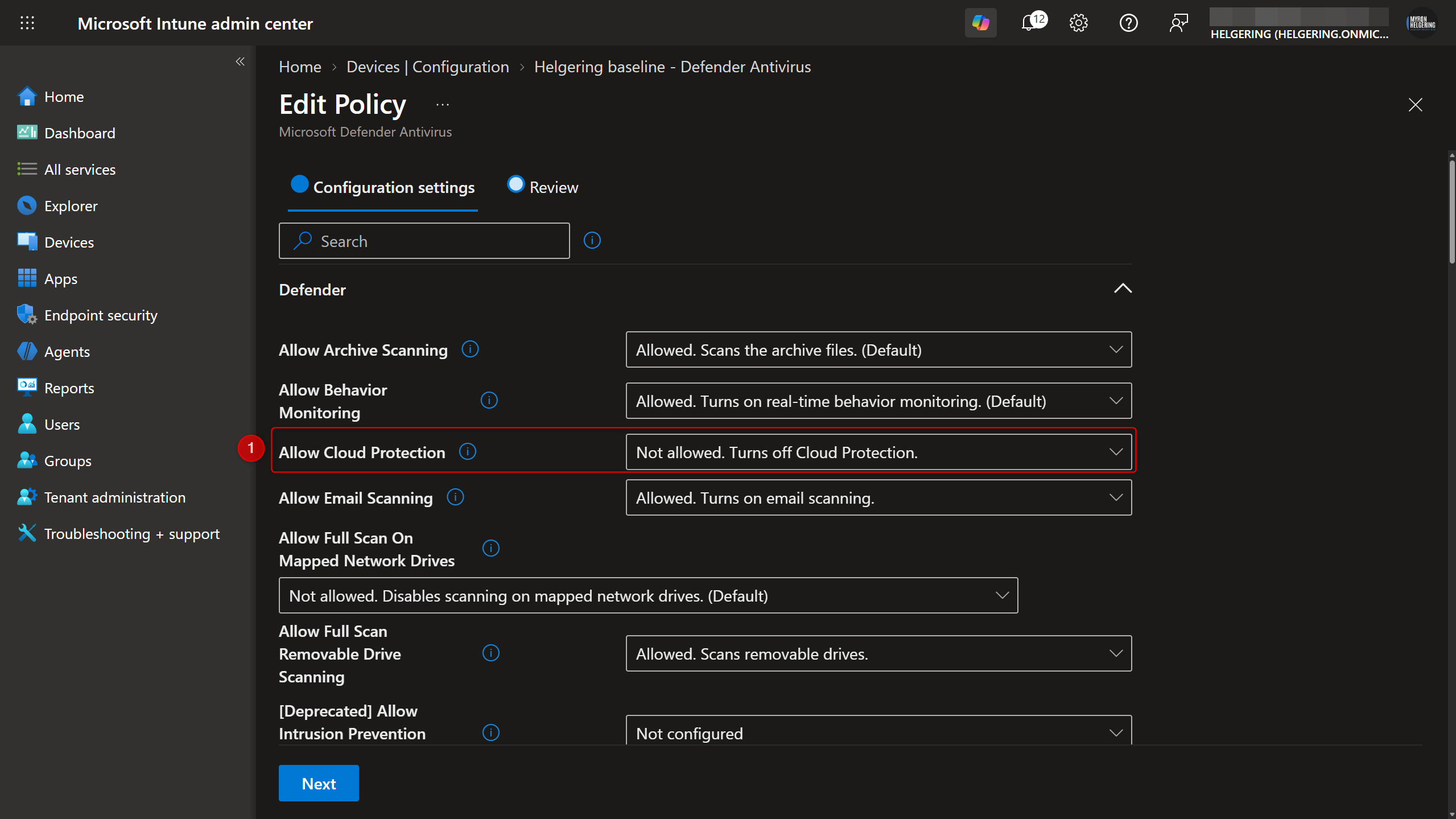
In my scenario, I'm monitoring a Defender Antivirus configuration profile, so I'll disable the "Cloud Protection" setting within the monitored policy. Let's see what happens next.
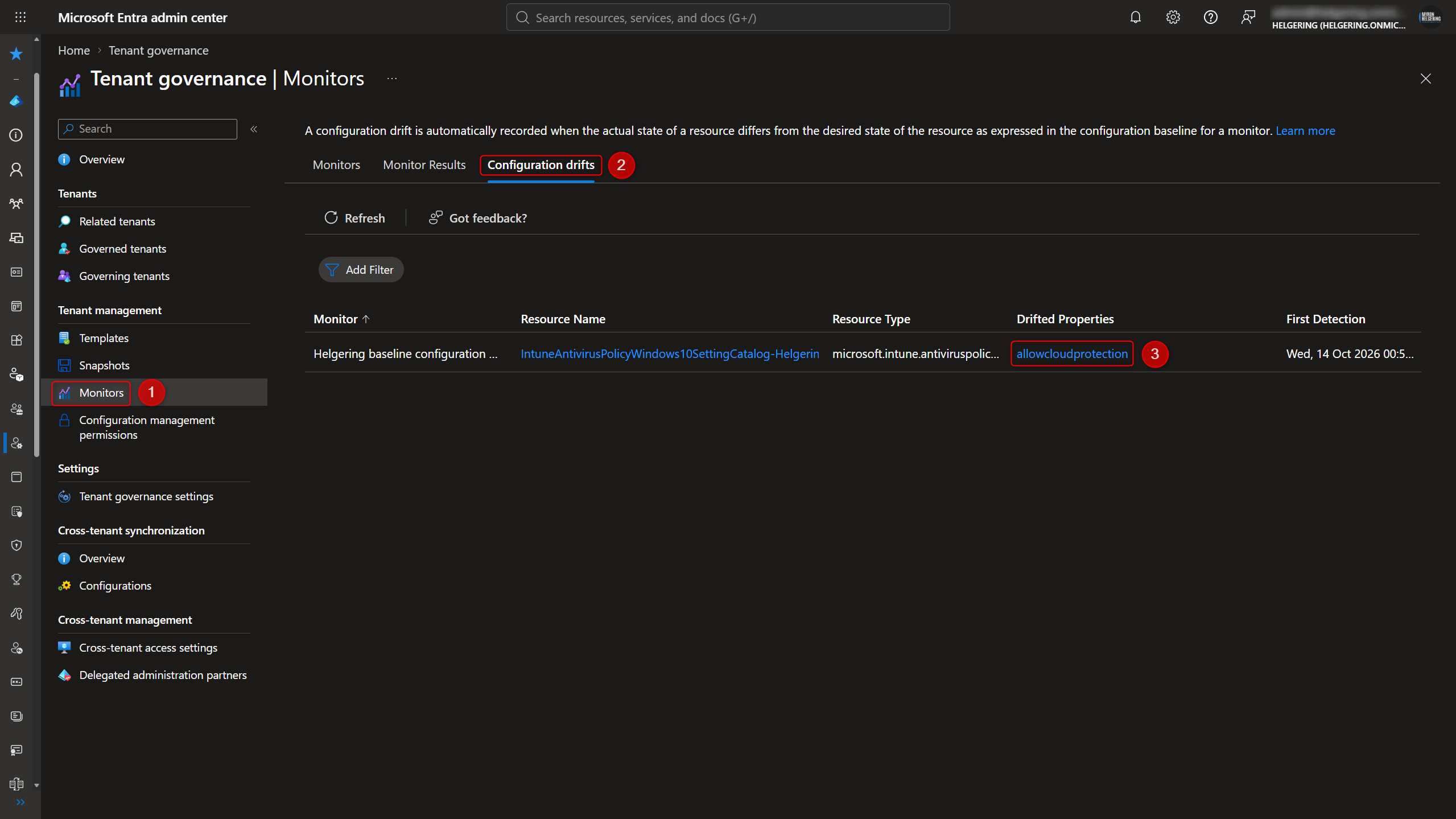
After the monitor’s first run:
- Navigate to the “Monitors” page.
- Look under “Configuration Drifts”. From this page, you’ll be able to view all policies and their properties that have drifted from their baseline.
- Click on a drifted property, such as “Cloud Protection” in my example.
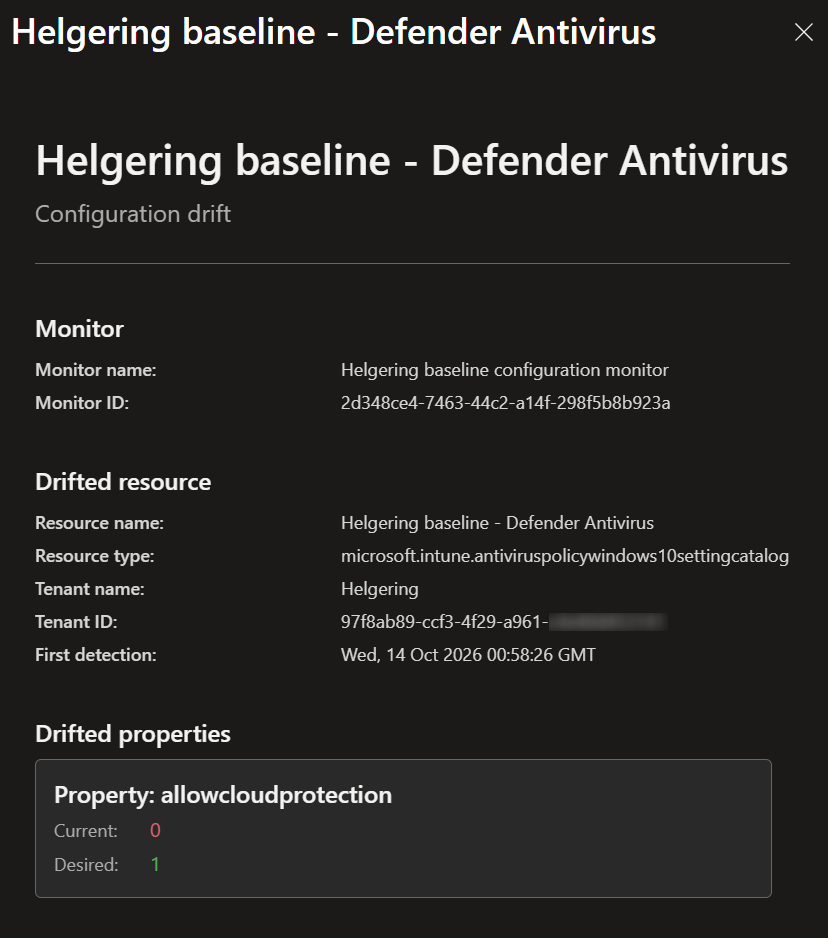
From here, you’ll get a nice little overview of the specific resource type and its drifted properties. You’ll be able to see what the “current” state of the configuration is but, more importantly, what the “desired” configuration state is.
Takeaways
Entra Tenant Governance is a step in the right direction for Microsoft. However, based on what I've seen so far, it still feels like it's missing a lot of basic features, such as:
- Auto-remediation of drift
- Drift alerting by email
- More configuration support for Defender products
- Allowing deviations or exceptions from your baseline
Besides the configuration management features, we haven't really scratched the surface of Entra Tenant Governance yet, as there's much more to explore.
In part 2 of this blog, we'll dive into the Multi-Tenant Governance features of the solution. Watch out for that one soon!