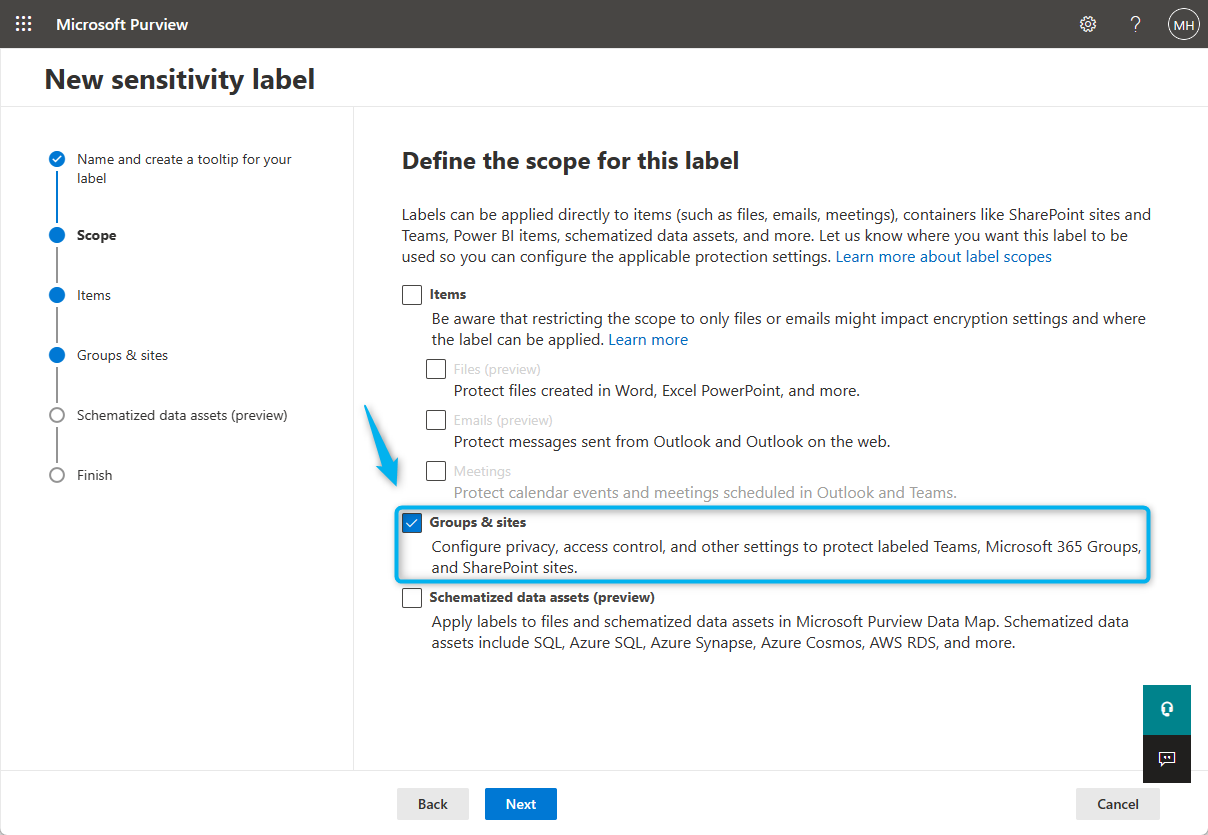
Quick Guide: Enabling Sensitivity Labels for SharePoint sites and groups

This is a quick little guide on how to enable Sensitivity Labels for containers such as Microsoft 365 groups, SharePoint sites and Microsoft Teams. I hope that these steps can provide clearer guidance then what is provided in the Microsoft documentation.
- Start the PowerShell or PowerShell ISE application.
- Use the following cmdlets to install, import and connect to the AzureADPreview module.
- Sign in to your admin account.
- Use the following cmdlet to display the current container settings.
If the output lists the current group settings (like pictured below), you can skip step 5 and 6 and move on to step 7.
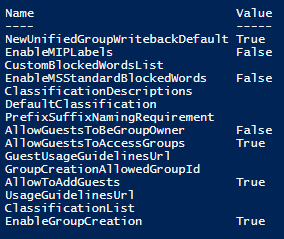
If the output is empty, it means that group settings have not been created for the tenant yet.
- Use the following cmdlet to select the "Group.Unified" settings template.
- Use the following cmdlet to create a new settings object.
- Use the following cmdlet to enable the feature.
- (A) Use the following cmdlet if the group settings were not created previously and you want to save the changes.
- (B) Use the following cmdlet if the group settings were created previously and you want to save the changes.
- Use the following cmdlet to verify if the feature has been enabled, the EnableMIPLabels value must be set to True.
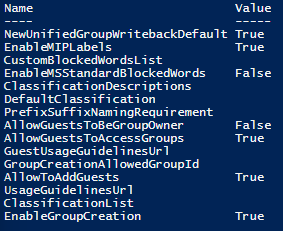
Now to finish of this guide we'll synchronize the Sensitivity Labels to AzureAD, so we are able to use them with Microsoft 365 Groups from Azure Active Directory (or Microsoft Entra).
- Use the following cmdlets to install and import the required module and connect to the Security & Compliance module.
- Sign-in to your admin account.
- Use the following cmdlet to synchronize the Sensitivity Labels to AzureAD.
If you have completed this guide, congratulations you are now able to create Sensitivity Labels meant for Microsoft 365 Groups, SharePoint sites and Microsoft Teams.