Limited Access with Session Policies for Unmanaged Devices
In two previous blog posts, I wrote about enforcing limited web-only access on unmanaged devices using Conditional Access policies or Sensitivity Labels. However, in this blog post, I will talk about a third method that achieves a similar web experience for unmanaged devices by utilizing session policies in Microsoft Defender for Cloud Apps (MDA).
You may wonder why you should choose this method over the others. Well, not only can we restrict downloading and printing of data, but we can also place other restrictions for example cut/copy data, which is not possible with the other methods. Additionally, user sessions with MDA will go through a proxy, which will enable session monitoring, and allows for the possibility of generating alerts.
While Microsoft Defender for Cloud Apps offers many more possibilities, today we will focus on preventing data leakage from unmanaged devices by restricting downloads, cut, copy, and print actions in Microsoft 365.
This post is divided in the following sections;
- Licensing
- Create Conditional Access app control policy
- Create activity for app control
- Create session policies
- User experience
- Wrap up
Licensing
To make use of the session policy features offered by Microsoft Defender for Cloud Apps, you will need to ensure that each user who benefits from these features has the following licenses assigned:
- Microsoft Entra ID P1 license
AND
- M365 E5 subscription or one of the following add-ons: M365 Security E5, M365 Compliance E5, M365 Information Protection & Governance or Enterprise Mobility + Security E5.
Create Conditional Access app control policy
Before proceeding to configure session policies in Microsoft Defender for Cloud Apps, we first need to create a Conditional Access policy. This policy will allow us to target specific user groups and enforce the session policies on those users.
- Go to the Microsoft Entra admin center and navigate to Azure Active Directory > Protect & Secure > Conditional Access.
- Click +New policy to create a new Conditional Access policy and start by assigning some test users.
- Configure the remaining settings of the policy to match the picture below, and then turn the policy on.
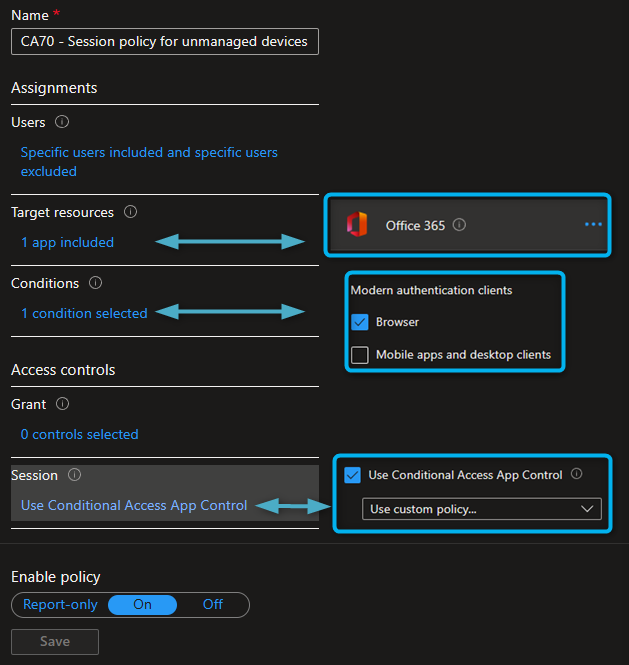
Don't worry, this policy will not take effect until we have created a session policy in Microsoft Defender for Cloud Apps.
Create activity for app control
If this is the first time you have created a Conditional Access app control policy, you will need to generate some activity in Microsoft Defender for Cloud Apps first. You can do this by signing into different M365 apps (such as OneDrive, Exchange Online, SharePoint Online, MS Teams) using at least one of the accounts included in the CA policy.
Afterwards, you can verify if the apps are connected to MDCA by visiting the Microsoft Defender admin center and going to Settings > Cloud Apps > Conditional Access App Control apps.
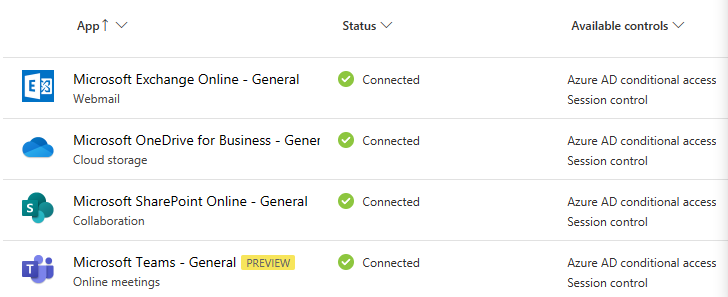
Please note that it may take a short while for the apps to be successfully connected.
Create session policies
With session policies in Microsoft Defender for Cloud Apps, we can enable real-time session monitoring and enforce specific restrictions on user activities. In this example, we will create two session policies to restrict cut, copy, print, and download actions on unmanaged devices.
Let's start by creating a session policy to restrict cut, copy, and print actions first. Follow these steps:
- Go to the Microsoft Defender admin center and navigate to Cloud Apps > Policies > Policy Management.
- Click on the +Create policy button and select Session policy to create the first session policy.
- Enter a name for the session policy.
- Select the Block activities session control type.
- Select all Microsoft 365 apps
- Select the Print and Cut/Copy item activity types.
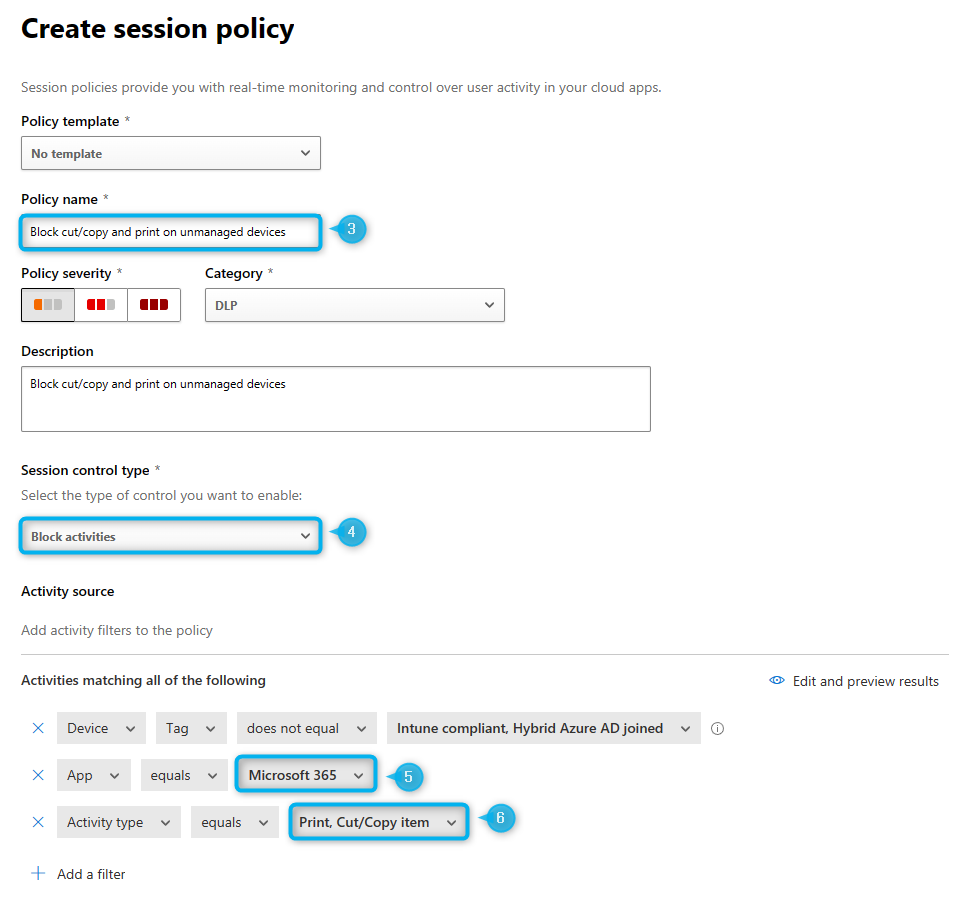
- Select the Block action, or choose Test if you want to monitor user activities first.
- Uncheck the option to create alerts unless you intend to actively manage them.
- Click the Create button and let's move on to the second policy.
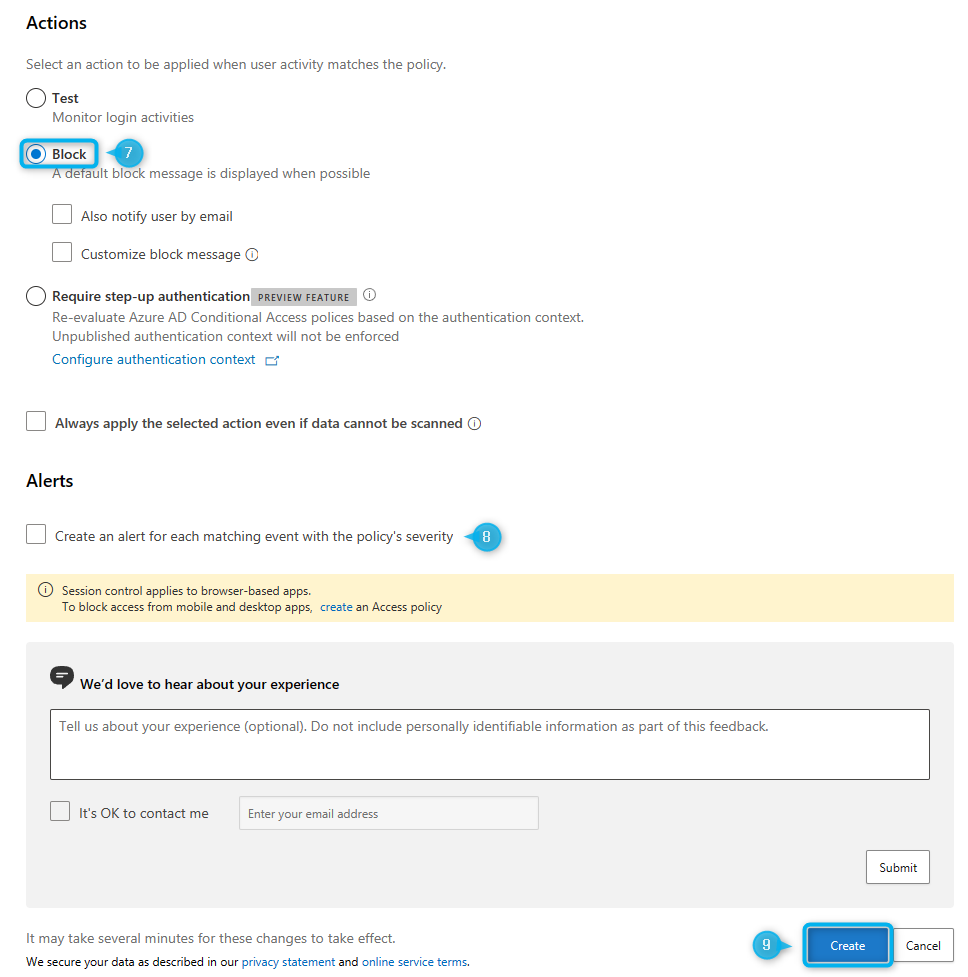
Next, we can proceed to configure the second policy to restrict download actions. You can follow these steps:
- Go back to Policy Management, click +Create policy and choose Session policy to create the second session policy.
- Enter a name for the session policy.
- Select the Control file download (with inspection) session control type.
- Select all Microsoft 365 apps
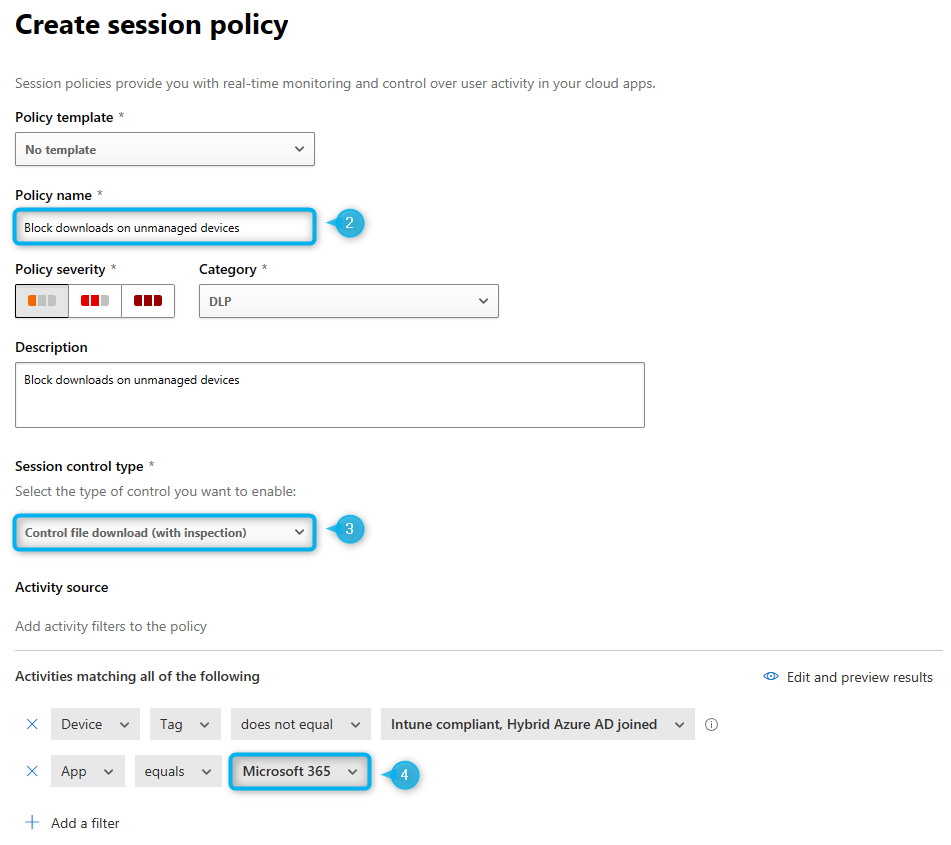
- Select the Block action, or choose Test if you would like to monitor user activities first.
- Uncheck the option to create alerts unless you intend to actively manage them.
- Click the Create button and you are done with creating the session policies.
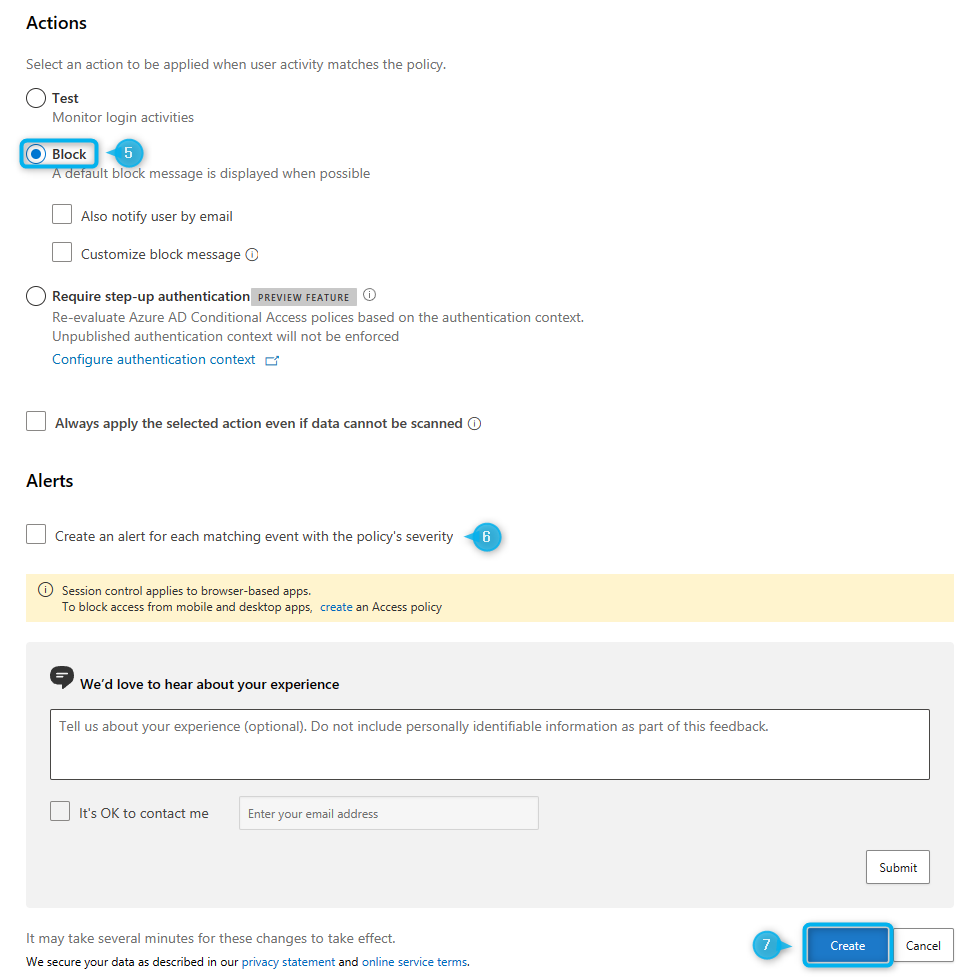
After successfully creating the session policies in Microsoft Defender for Cloud Apps, our configuration is complete, and we can now examine the results.
User experience
Now, let's sign in from an unmanaged device using a user account that is included in the Conditional Access policy we created earlier, and see what the user experience is like.
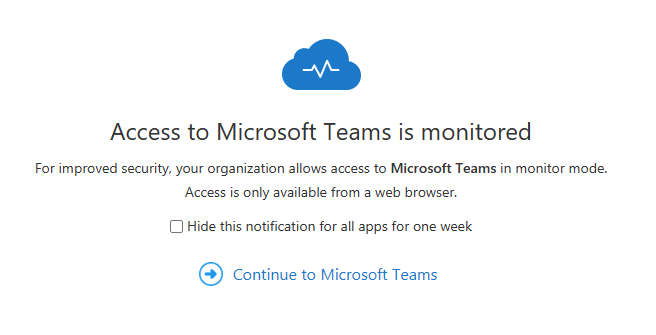

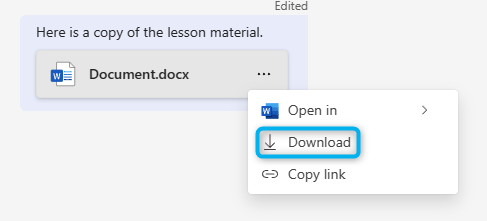
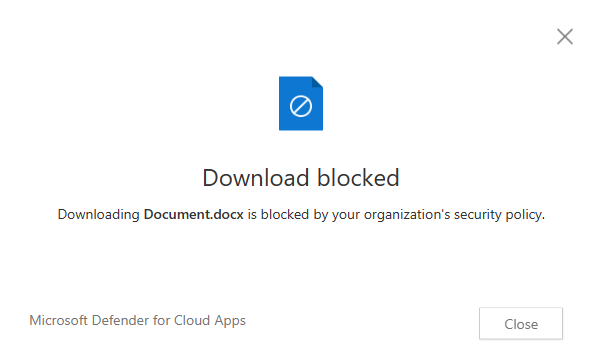
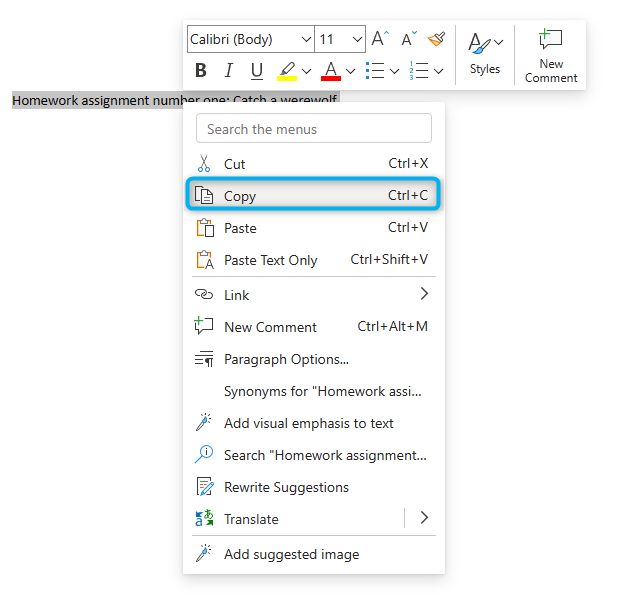
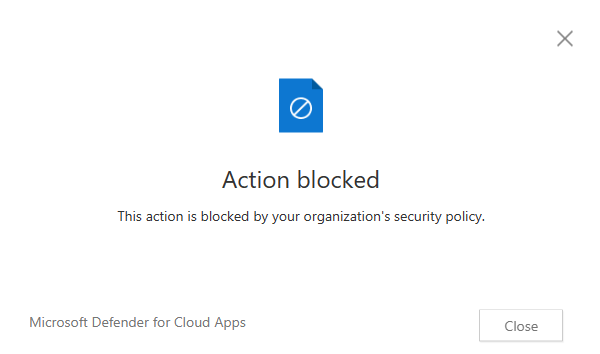
These restrictions will apply to the other Microsoft 365 services, including Microsoft Teams, OneDrive, Exchange Online, and SharePoint Online.
Wrap Up
To wrap up this blog, I highly recommend considering blocking desktop app access for users working from unmanaged devices when implementing the session policies discussed here.
Without this, users will still be able to sign in to desktop apps and perform the actions like downloading, copying, cutting, and printing files from there. Do this at least until Microsoft offers similar capabilities to what Windows Information Protection (WIP) provided, which has been announced as discontinued.
However, recently, Microsoft announced Mobile Application Management (MAM) for Windows. Read this blog post, where I take a first look at this brand new feature.