Quick Guide: Enable Single Sign On (SSO) for Chrome and Firefox

Enabling Single Sign-On (SSO) for third-party browsers like Google Chrome and Firefox offers several benefits. Firstly, users won't have to repeatedly authenticate when working from different browsers. However from a security perspective, when SSO is enabled, Microsoft Intune is able to assess the device's compliance status. Without implementing SSO, conditional access will consider the device as non-compliant while working from a third-party browser.
In this Quick Guide, I will guide you through the steps on how to configure SSO for Google Chrome and Firefox by utilizing Microsoft Intune's configuration policies.
Enable Single Sign on for Google Chrome
In March 2022, Microsoft introduced Google Chrome settings to the Settings Catalog in Microsoft Intune. As a result, we can now manage Google Chrome settings without the need to ingest ADMX files or configure custom URIs.
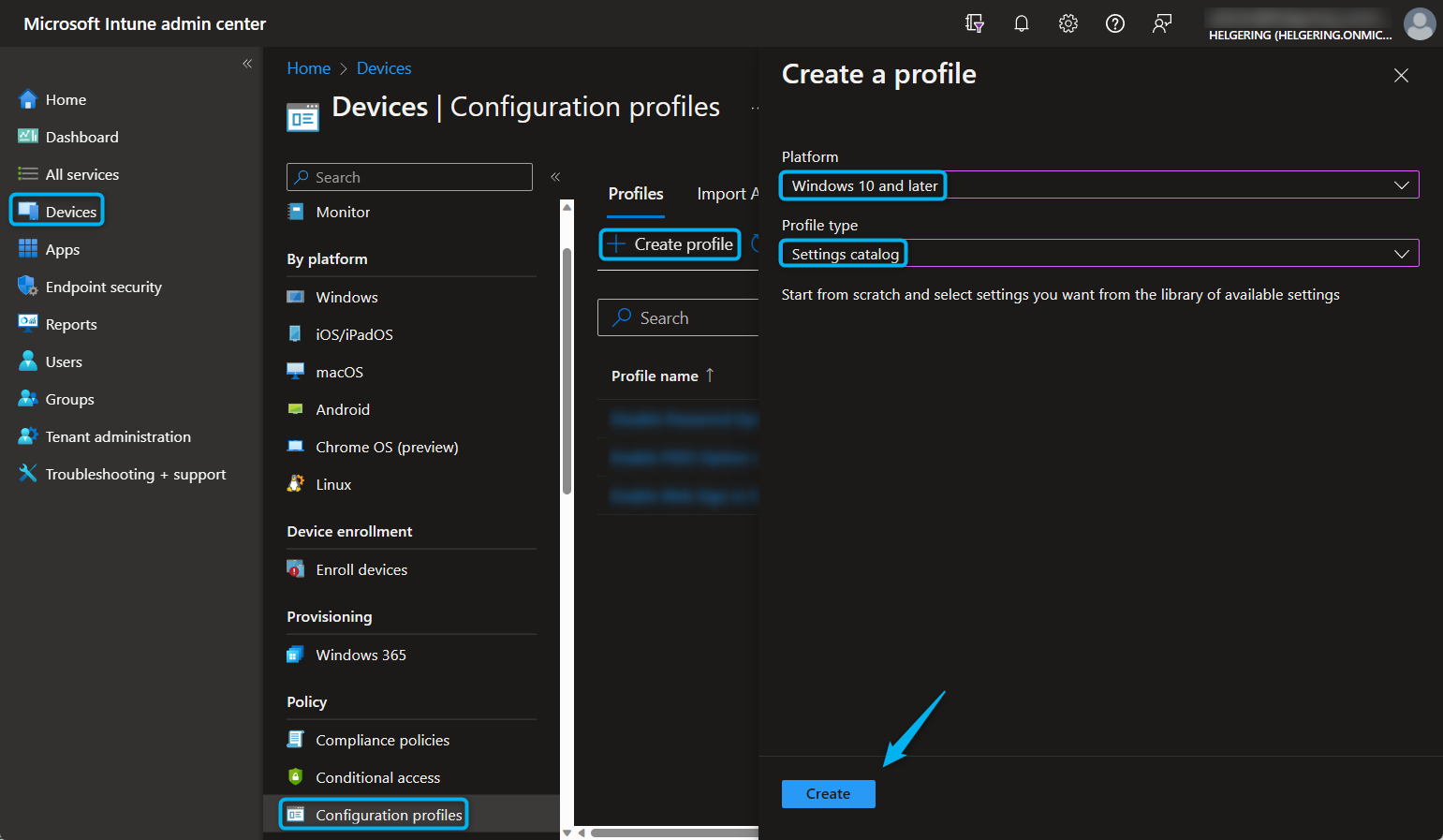
- Firstly, let's start navigating to the Microsoft Intune admin center > Devices > Configuration Profiles > +Create Profile
- Select the Platform Windows 10 and later, the Profile type Settings catalog, and click Create.
- Enter a name and description for your policy and click Next.
- Click Add settings > search and select the Google Chrome Extensions settings > select Configure the list of force-installed apps and extension (user).
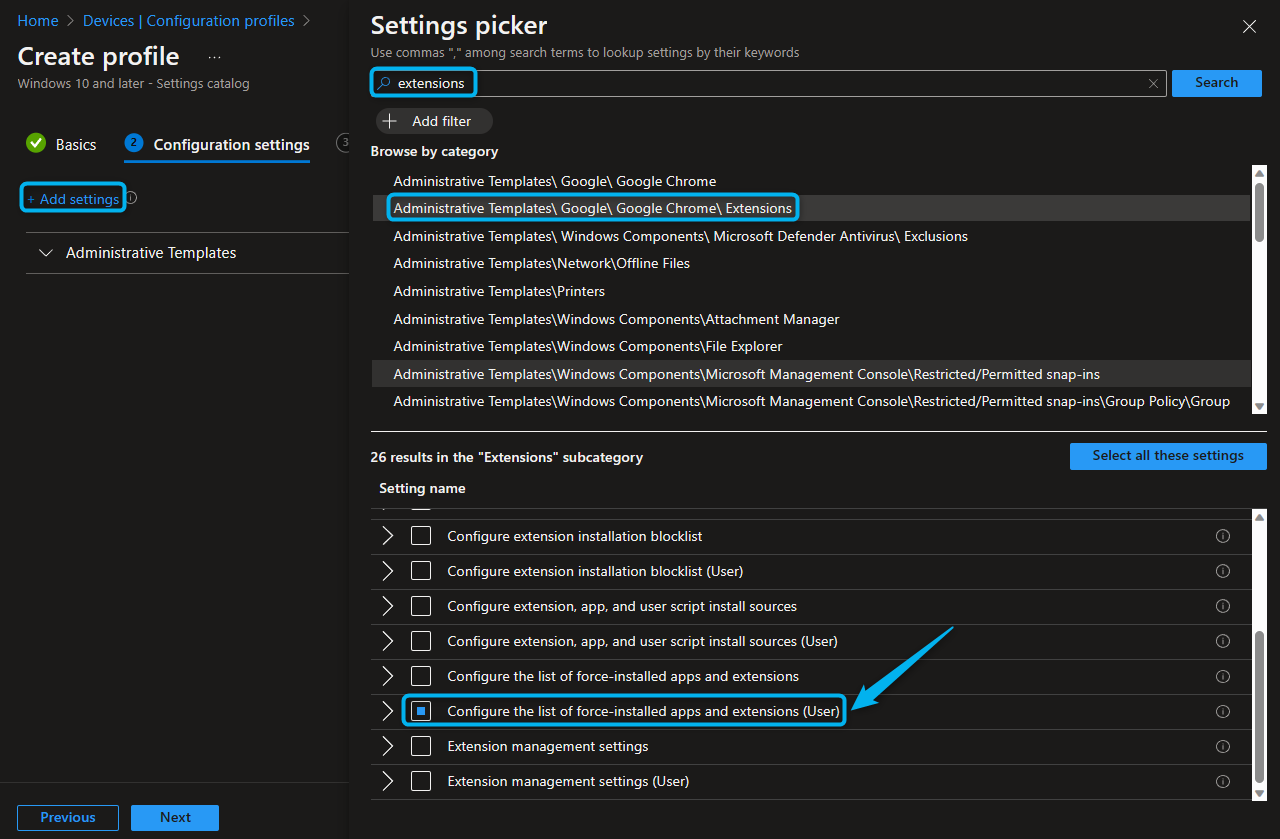
- Enable the policy settings and copy/paste the extension ID below and click Next.
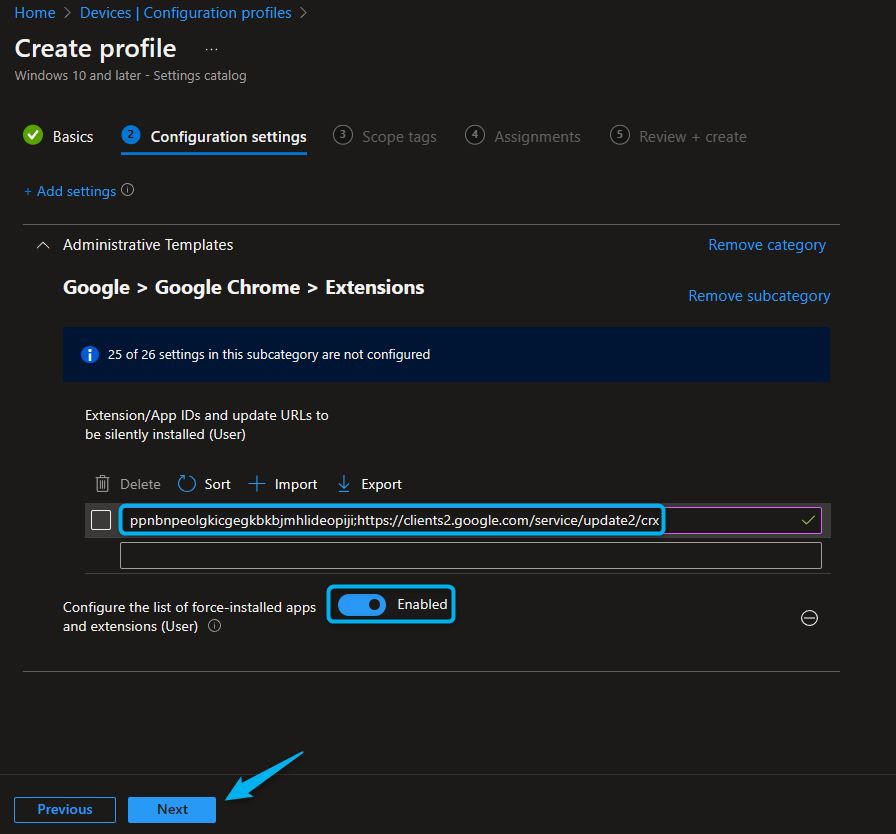
- Assign users to the policy and finish by creating it.
Enable Single Sign on for Firefox
Unfortunately, Microsoft hasn't added Firefox settings to the Settings Catalog in Microsoft Intune yet. This means we'll have ingest ADMX files and configure a custom URI, but we will do this as efficiently as possible in one single configuration profile.
- Firstly, let's start navigating to the Microsoft Intune admin center > Devices > Configuration Profiles > +Create Profile
- Select the Platform Windows 10 and later, the Profile type Templates, the Template name Custom, and click Create.
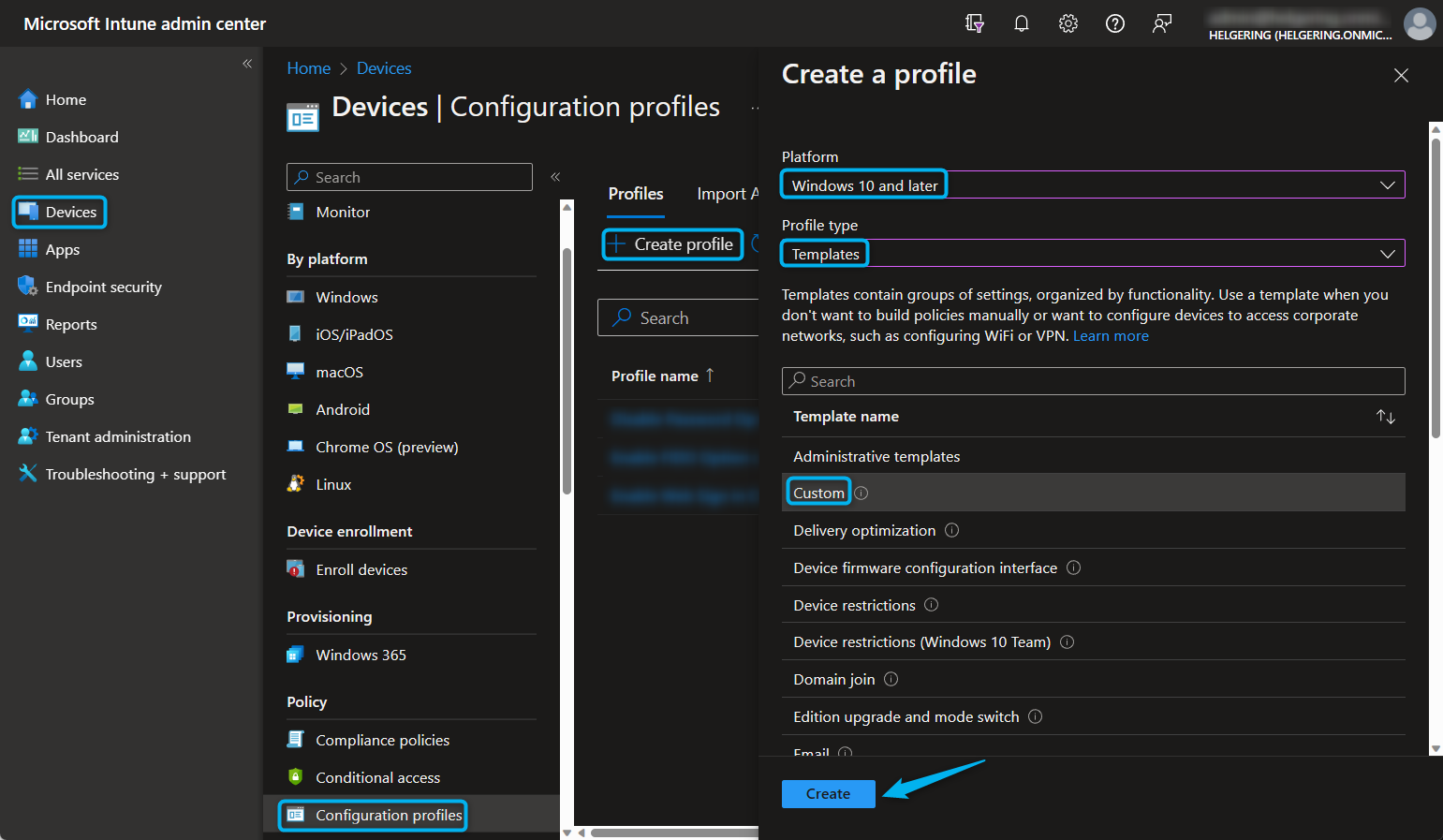
- Enter a name and description for your policy.
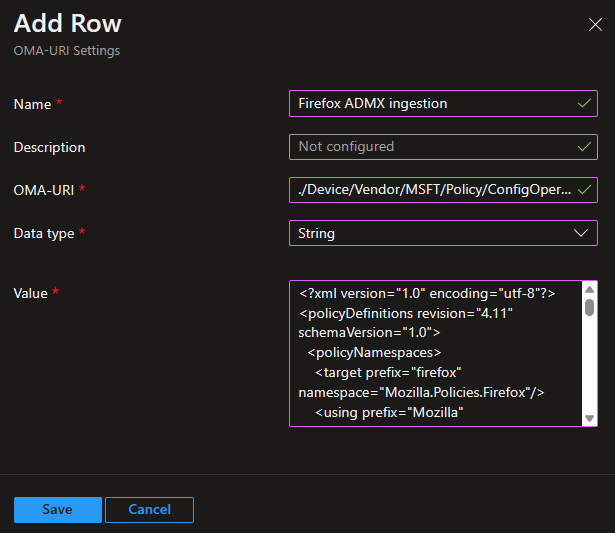
- Add an OMA-URI Setting, use below settings and click Save.
| Name | Firefox ADMX ingestion |
| OMA-URI | ./Device/Vendor/MSFT/Policy/ConfigOperations/ADMXInstall/Firefox/Policy/Firefox |
| Data type | String |
| Value | Insert the contents of the latest firefox.admx file here (download link) |
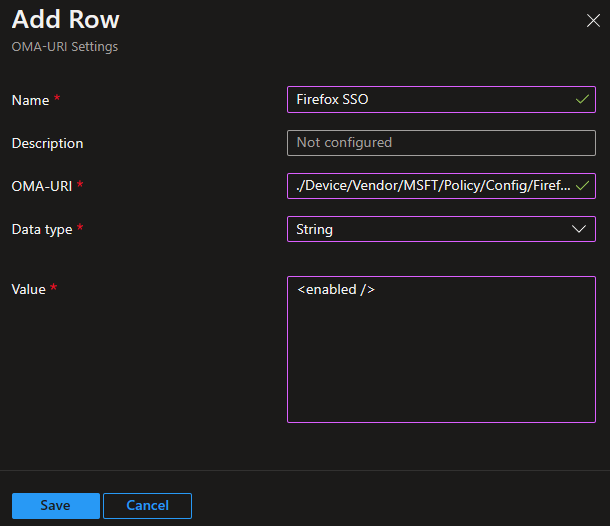
- Add another OMA-URI Setting, use below settings and click Save.
| Name | Firefox SSO |
| OMA-URI | ./Device/Vendor/MSFT/Policy/Config/Firefox~Policy~firefox/WindowsSSO |
| Data type | String |
| Value | <enabled /> |
- Assign users to the policy and finish by creating it.
User Experience
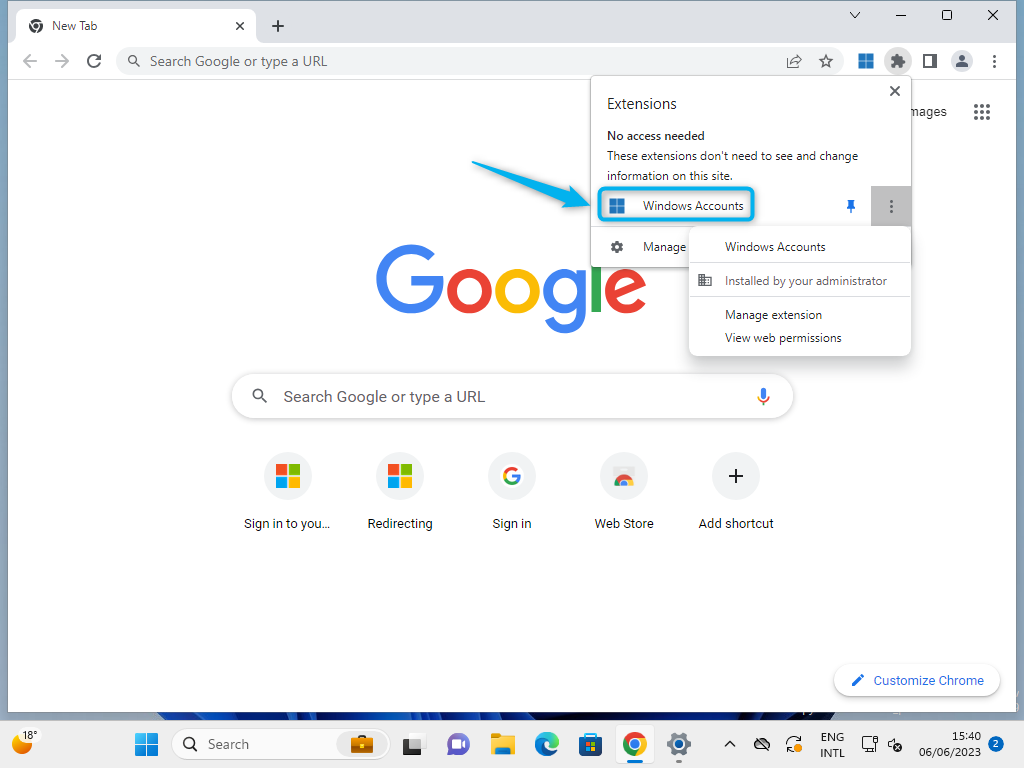
Once the configuration profiles have been deployed, you will notice the Windows Accounts extension added to the Google Chrome Browser. As this extension is managed by Microsoft Intune, users won't have the ability to disable it.
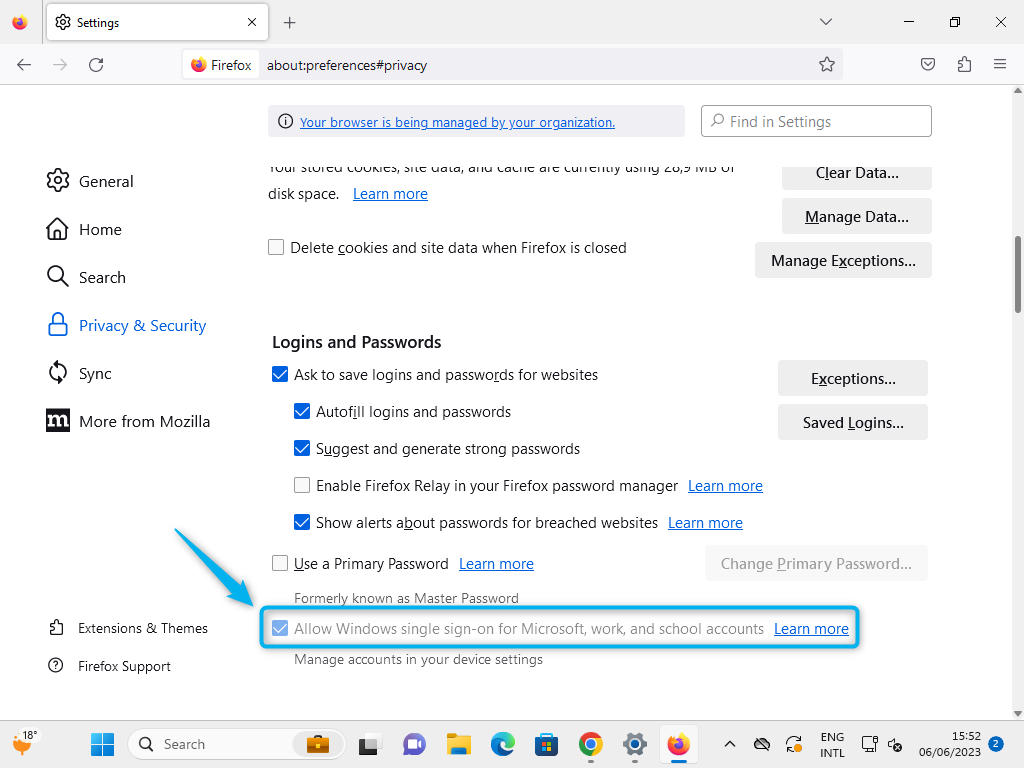
In Firefox, you will find that Single Sign On has been configured in the Privacy & Security section of the settings. You will notice that the option is grayed out, preventing users from disabling it.
If you have followed this Quick Guide, users won't have to authenticate anymore while working from Google Chrome or Firefox. Also more importantly Microsoft Intune can asses device compliance and conditional access policies can be enforced.
Productivity + Security = 🎉