Quick Guide: How to enable device trust for guest users
Initially, Microsoft introduced the cross-tenant access settings in Microsoft Entra simultaneously with the shared channel feature in Microsoft Teams. Setting up this B2B collaboration between tenants was a requirement for working with these shared channels.
Today, many organizations require their users to work from managed and compliant devices before allowing them to access company resources. However, enforcing this policy for guest users is not as simple because they work from devices managed by another organization.
It's not simple, but it's not impossible, either. If we configure the cross-tenant access settings, we can trust compliant and managed devices from other Microsoft Entra tenants.
Follow this quick guide on how to enable device trust for guest users.
Configure cross-tenant settings
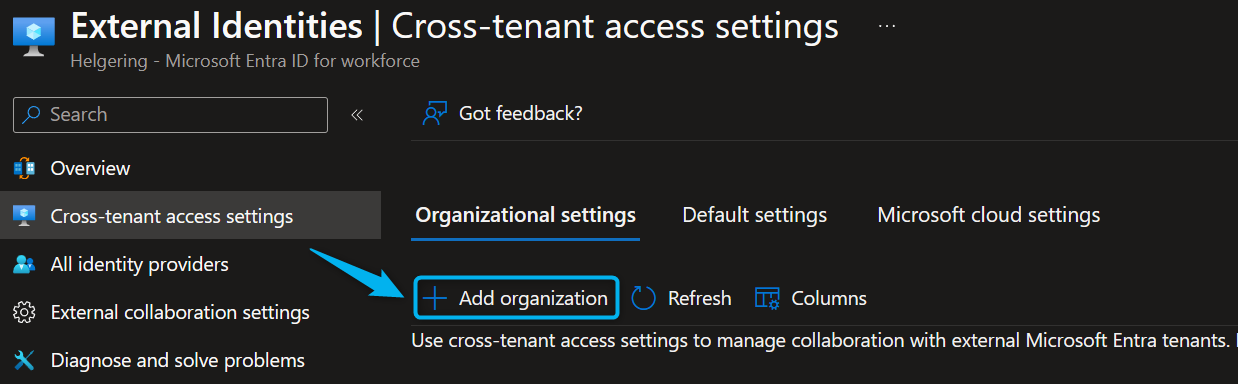
- Navigate to the External Identities section in the Microsoft Entra admin center and find the Cross-tenant access settings.
- Click the +Add organization button and type in the external domain names or Tenant ID to add an external Microsoft Entra tenant for B2B collaboration.
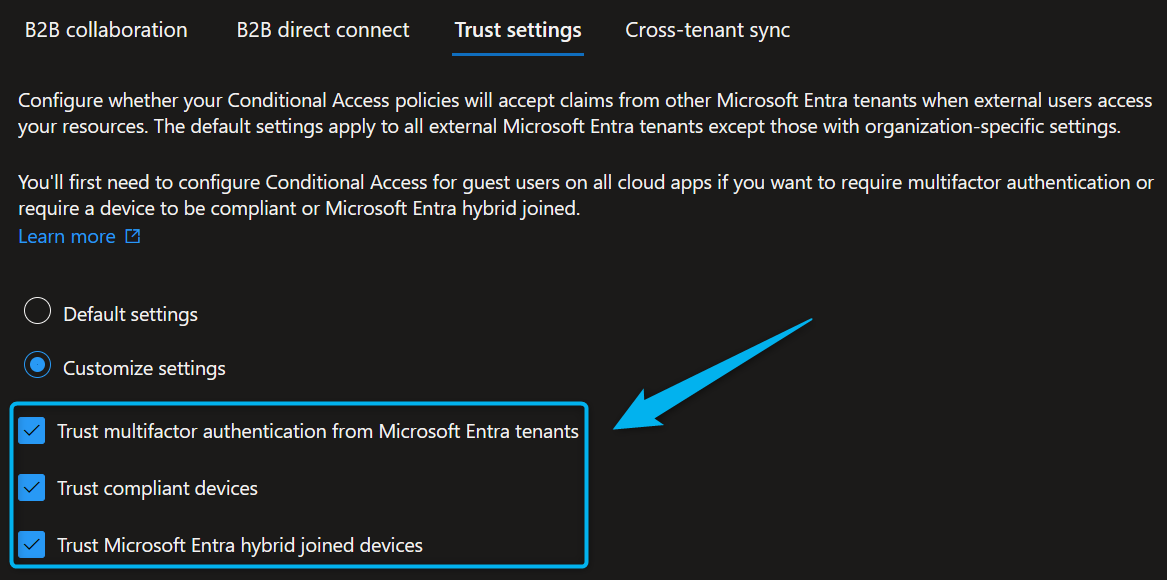
- Now click on the newly added external Microsoft Entra tenant and go to the Trust settings page.
- From here, you can select and enable the "Trust compliant devices" and "Trust Microsoft Entra Hybrid joined devices" settings, and click Save.
Optionally, you can do the same for the "trust multi-factor authentication" setting.
After configuring these trust settings, you can accept and trust external claims from other Microsoft Entra tenants. Be aware that you don't actually know what these claims are based on. The claim for a compliant device could be coming from a device without BitLocker or a device with real-time protection disabled. For this reason, you might only want to configure this for trusted partners or if your company has multiple tenants.
Guest User Experience
It is important to note that this scenario assumes that you have an active conditional access policy that requires guests to sign in from a compliant or managed device before accessing your environment.
If the guest user attempts to access the environment from a non-compliant or unmanaged device, they will be unable to do so and will receive the following error message.
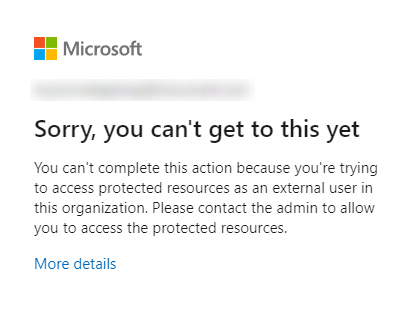
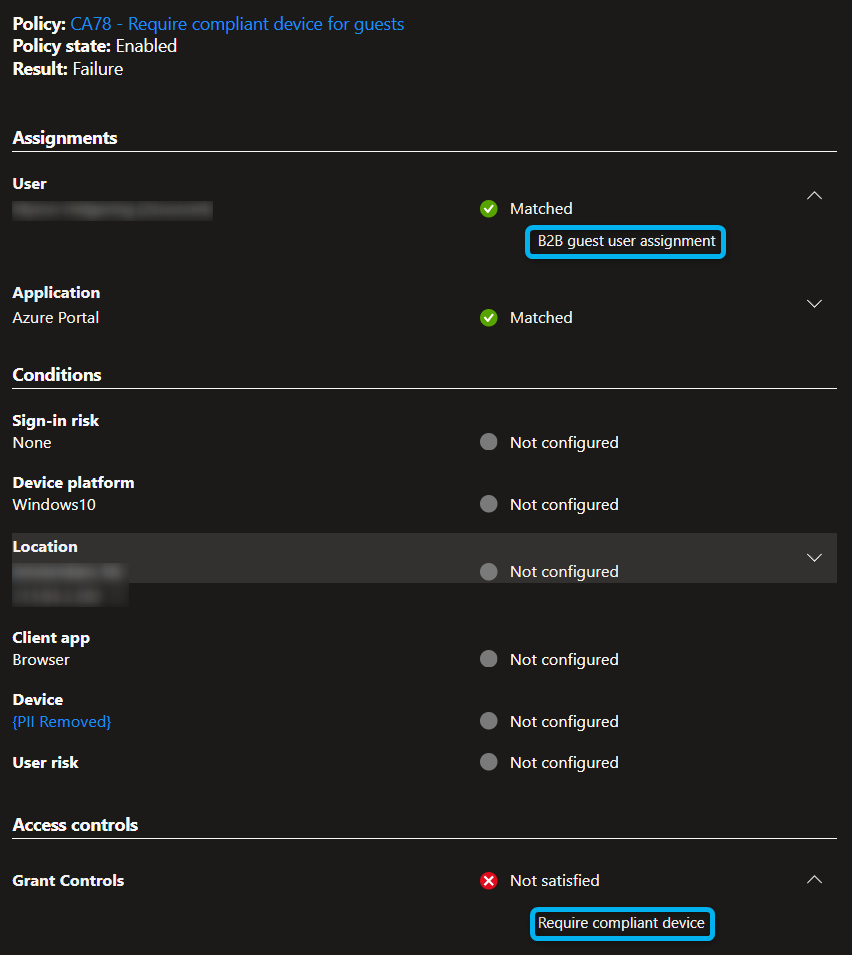
Also, the sign-in logs will clearly show you the reason for the sign-in failure.
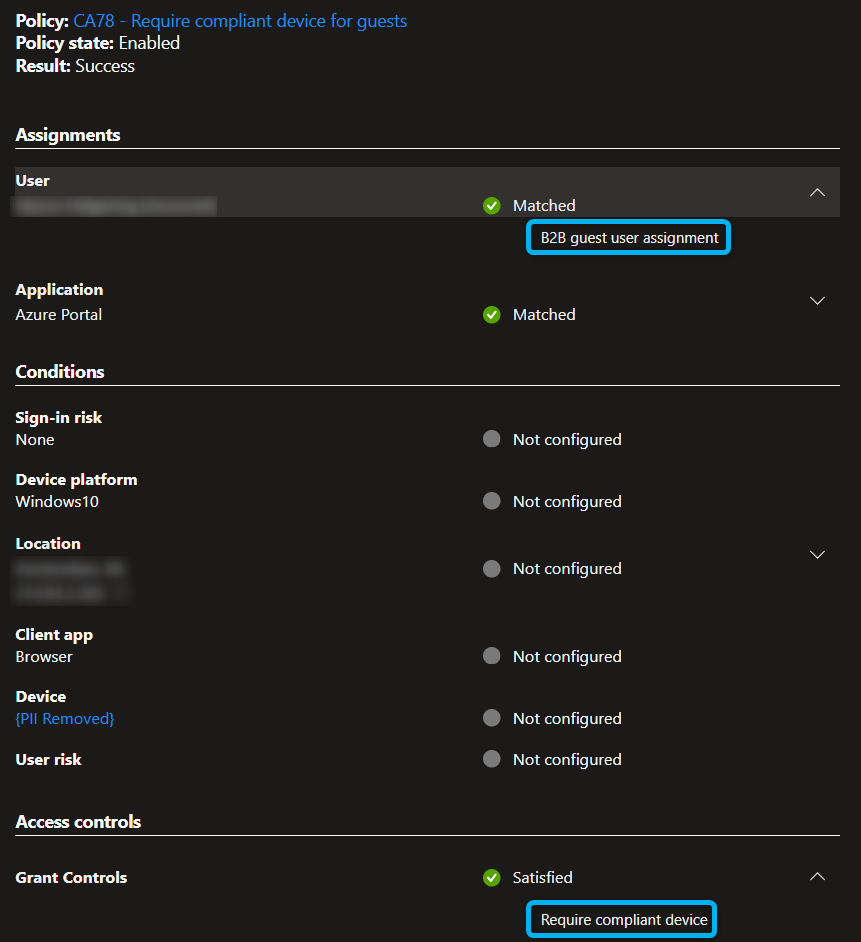
When a guest user attempts to access the environment from a managed and compliant device, he can successfully sign in, and the sign-in logs will show us the successful sign-in.
Entra ID B2B integration with SharePoint and OneDrive
Lastly, it is good to know that sharing a file, folder, or site with a guest in SharePoint and OneDrive does NOT automatically create an Entra ID B2B guest account for them. As a result, you can't enforce Conditional Access policies on them, and the cross-tenant access settings we just configured won't apply to those guests.
To resolve this issue, download and connect to the SharePoint Online Management Shell and use the following cmdlet;
By making this change, an Entra ID B2B account will be created for guests automatically whenever they access SharePoint and OneDrive. (read more about the integration here)